How to Bulk Crop PDFs on Computer and Mobile

Summary :
Learn about the easy methods for you to bulk crop PDF with multiple pages or multiple PDF files at one go, with simple clicks.
Table of Contents
How to Bulk Crop PDFs
In the digital realm, handling PDFs efficiently can significantly boost productivity, especially when dealing with tasks like cropping.
While many tools offer the functionality to crop multiple pages within a single PDF, finding solutions that enable the cropping of multiple PDF pages/files in batches is a bit more challenging.
This article delves into how you can bulk crop PDFs seamlessly on both computer and mobile, enhancing your workflow and saving time.
Bulk Crop Multiple PDF Pages Online Free
In the pursuit of simplicity and accessibility, the PDFgear online PDF cropper emerges as a formidable tool that caters to users on both computers and mobile phones.
This method stands out for its user-friendly interface and the ability to crop all pages of a PDF document simultaneously.
PDFgear is the best free PDF cropper software to crop PDF pages in a customizable manner. Get it now.
PDFgear not only offers a convenient cropping tool but also ensures that your documents are handled securely, making it an excellent choice for quick edits on the go.
Check out the steps below on how to crop with PDFgear.
Step 1. Navigate to PDFgear’s online PDF cropper using your preferred web browser on any device.
Step 2. Click on the “Select PDF File” button to select the PDF file you wish to crop.
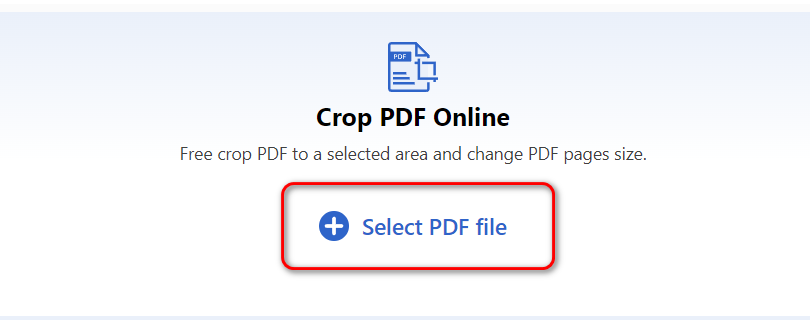
Upload Your PDF to PDFgear
Step 3. Use the cropping tool to define the area you want to keep. For consistency across all pages, make sure to choose the “All Pages” option.
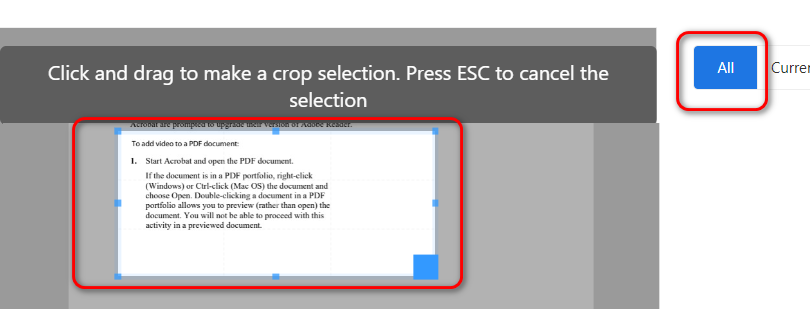
Select Cropping Area
Step 4.Once satisfied with the selection, apply the crop, and download your newly edited PDF.
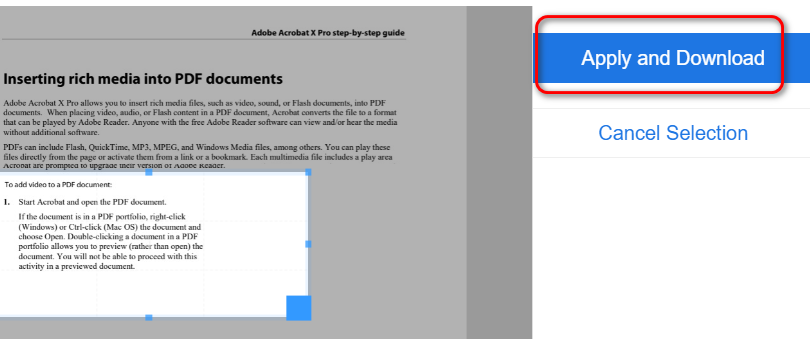
Apply and Download
Bulk Crop Multiple PDF Documents with Acrobat
Adobe Acrobat Pro DC stands apart by offering a comprehensive solution for those needing to crop multiple PDF documents once with several pages each.
It is particularly useful for professionals who work with large volumes of documents and require a more robust tool for their editing needs.
Do take note that Adobe Acrobat Pro DC is a premium software, though trial versions are available. It provides a wide range of PDF editing tools beyond cropping, making it a versatile choice for extensive PDF manipulation.
Here’s how you do it:
Step 1. Launch the software on your computer. > Navigate to “Tools” > “Organize Pages” in the top menu bar.
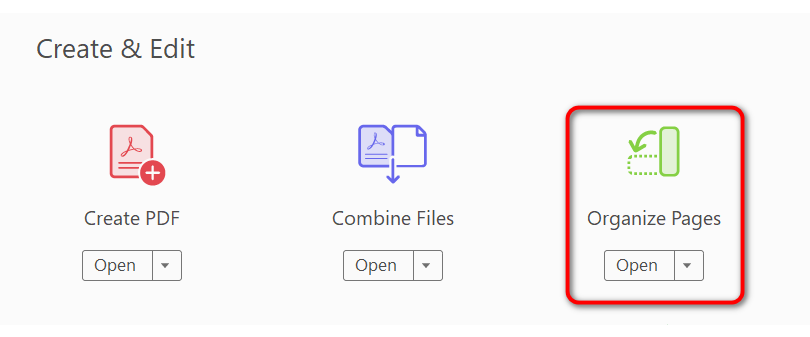
Access “Organize Pages”
Step 2. Click “Select a File” and select the PDF files containing the pages you want to crop. Hold the “Ctrl” key (Windows) or “Command” key (Mac) to select multiple files simultaneously.
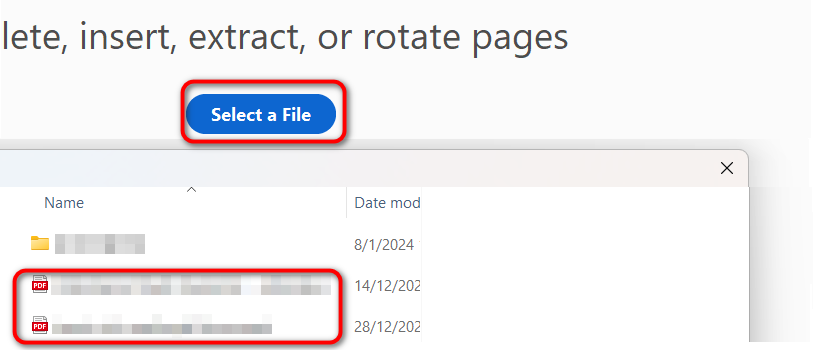
Add Your PDFs to Adobe Acrobat
Step 3. In the “Organize Pages” panel on the right, choose the thumbnails of individual pages within each PDF that you want to crop. Hold the “Ctrl” or “Command” key for multiple selections.
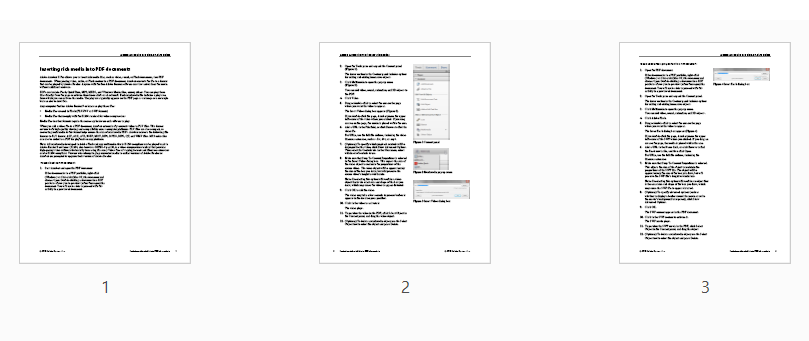
Select Pages
Step 4. Right-click on the selected pages and choose “Crop Pages” from the context menu.
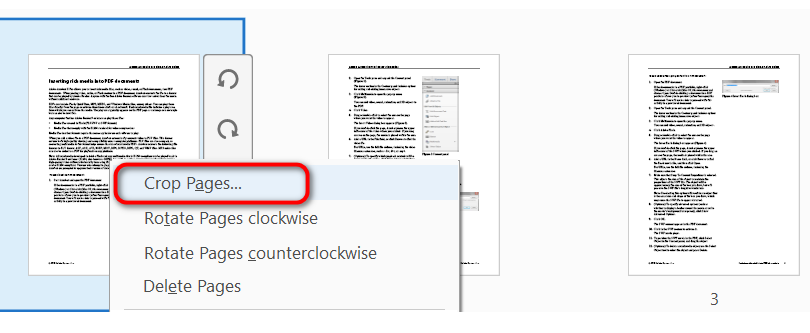
Crop the PDF Pages
Step 5. In the “Crop Pages” dialogue box, you can:
Manually: Drag and adjust the selection rectangle displayed on the page preview to define the desired cropping area.
Presets: Choose from pre-defined options like “Crop to Media Box” or adjust specific margins.
Step 6. Click “OK” to confirm the cropping settings. Then, choose “Replace” in the “Organize Pages” panel to apply the cropping to all selected pages within their respective PDFs.
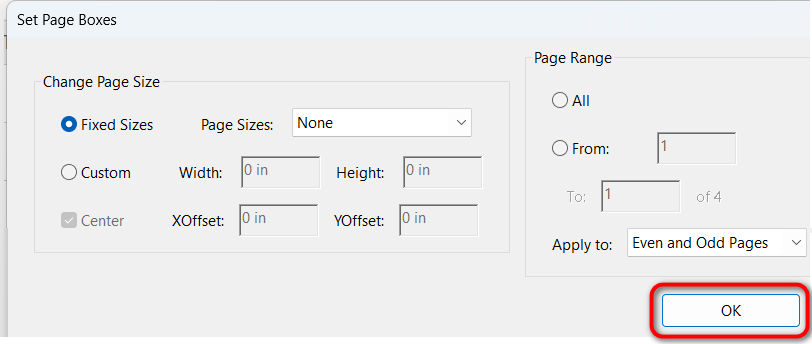
Crop and Replace
Step 7. Save the Cropped PDFs. Now click “File” > “Save” from the top menu bar, or directly click the “Save” icon to save each modified PDF with cropped pages. Repeat steps 4-7 for other PDFs and page selections if needed.
Bulk Crop PDF Pages Using Python
For those who prefer a more hands-on, customizable approach, using a Python script to bulk crop PDF pages is an excellent alternative. This method requires a basic understanding of Python and the installation of libraries such as PyPDF2 and pdfrw.
The steps below assume you have Python installed on your computer and will guide you through the steps to create a script that can automate the cropping process for multiple PDF files.
Step 1. Open your command line interface and run `pip install PyPDF2 pdfrw` to install the necessary Python libraries.
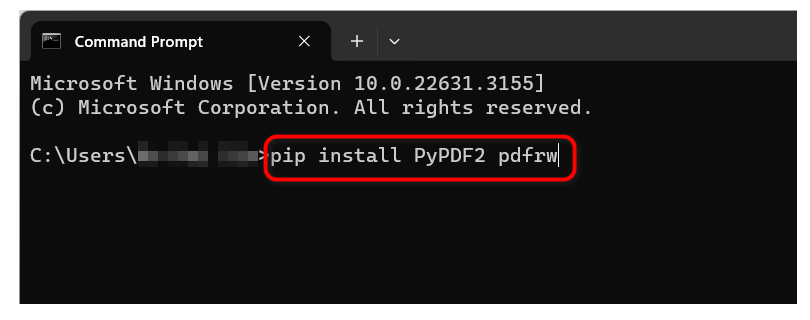
Install Libraries
Step 2. Open your preferred text editor or IDE and create a new Python script.
Step 3. Define the Function: Paste the code into your script to define a function named bulk_crop_pdf
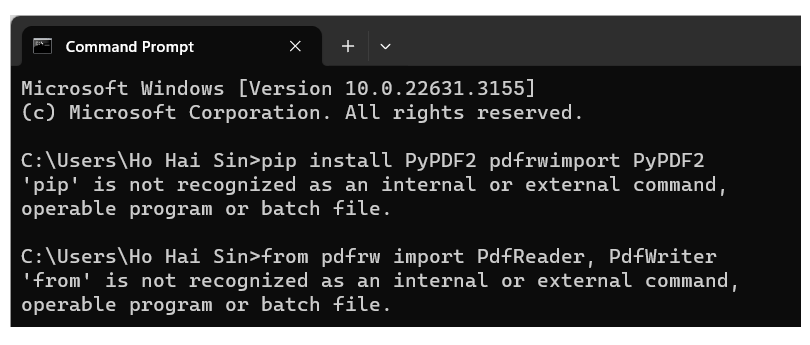
Define the Function
Step 4. Save your Python script with a suitable name (e.g., bulk_crop_pdf.py). Navigate to the script’s directory in your terminal and execute it using the command python bulk_crop_pdf.py
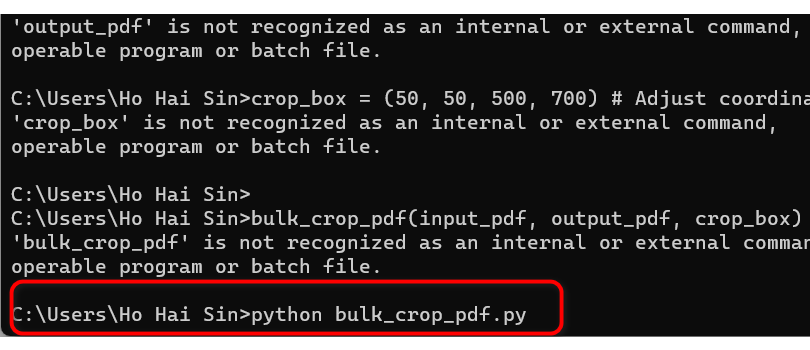
Run Script
Step 5. Replaceyour_file.pdfwith the actual path to your PDF file and cropped_file.pdf with the desired name for the output cropped file.
Step 6. Modify the crop_box tuple to define the desired cropping area. Refer to the documentation of pdfrw for the format of crop box coordinates.
Conclusion
Efficiently bulk cropping PDFs enhances productivity, with options ranging from online tools like PDFgear, and Adobe Acrobat Pro DC’s comprehensive features, to customizable Python scripts.
Each offers a streamlined solution tailored to various needs, transforming document management into a simple and efficient process.
Embracing these methods can significantly improve your digital workflow.
