5 Free Ways to Edit a PDF Without Adobe

Summary :
Need to edit a PDF but don’t have Adobe Acrobat? This article explains how to use PDFgear, Google Docs, and Microsoft Word to modify PDFs without Adobe Acrobat.
Table of Contents
How to Edit a PDF without Adobe
Developed by Adobe, the PDF file format has become extremely popular. What best way can you think of – other than Adobe itself to work with and edit a PDF file?
However, if you do not have Adobe for some reason and are looking to edit a PDF file, the following methods can prove to be practical and helpful.
How to Edit a PDF With the Adobe Acrobat Alternative
You can check out the internet for several Adobe alternatives. PDFgear is one of the excellent options for PDF management and is an excellent Adobe alternative.
PDFgear lets you edit your PDF files by adding text, changing the font, and a whole lot of options to format text. It works seamlessly on both Windows and Mac.
Step 1. Open the PDF with PDFgear
Assuming that you have installed PDFgear on your desktop, open the PDF with PDFgear. You can do it by clicking on the Open File and then browsing for the file.
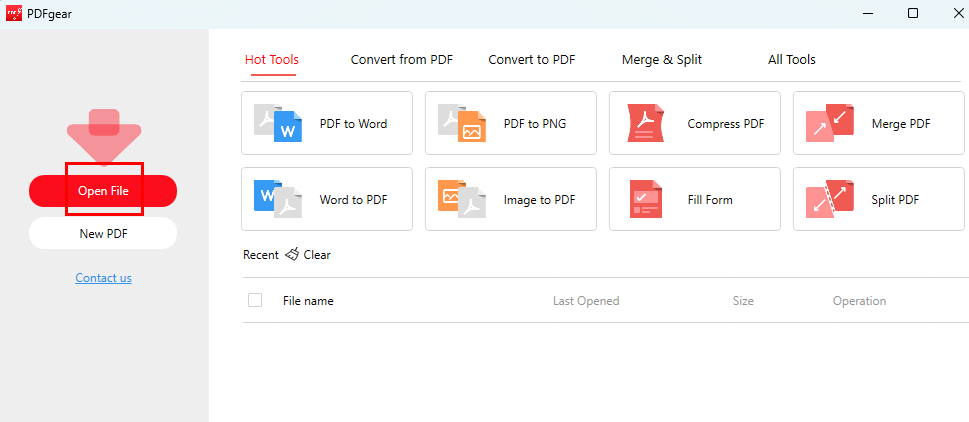
Open PDF File in PDFgear
Step 2. Access the Editing Options
Once the file is open in PDFgear, click on the Edit tab on the main menu, which should open the editing options. Choose the exact editing options that you would prefer.
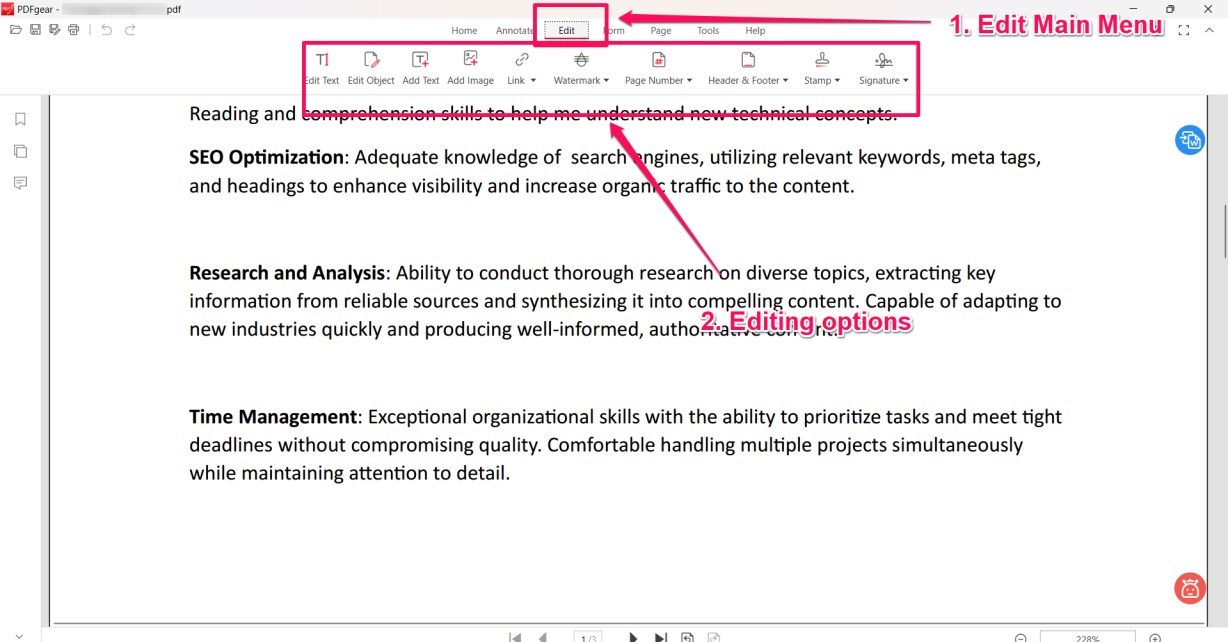
Editing Menu in PDFgear
Some examples can be adding text, changing the font size, and performing a good number of other options.
Step 3. Apply Edits and Save the File
You can apply as many edits as may be applicable. You can modify text add or even delete the text based on your needs.
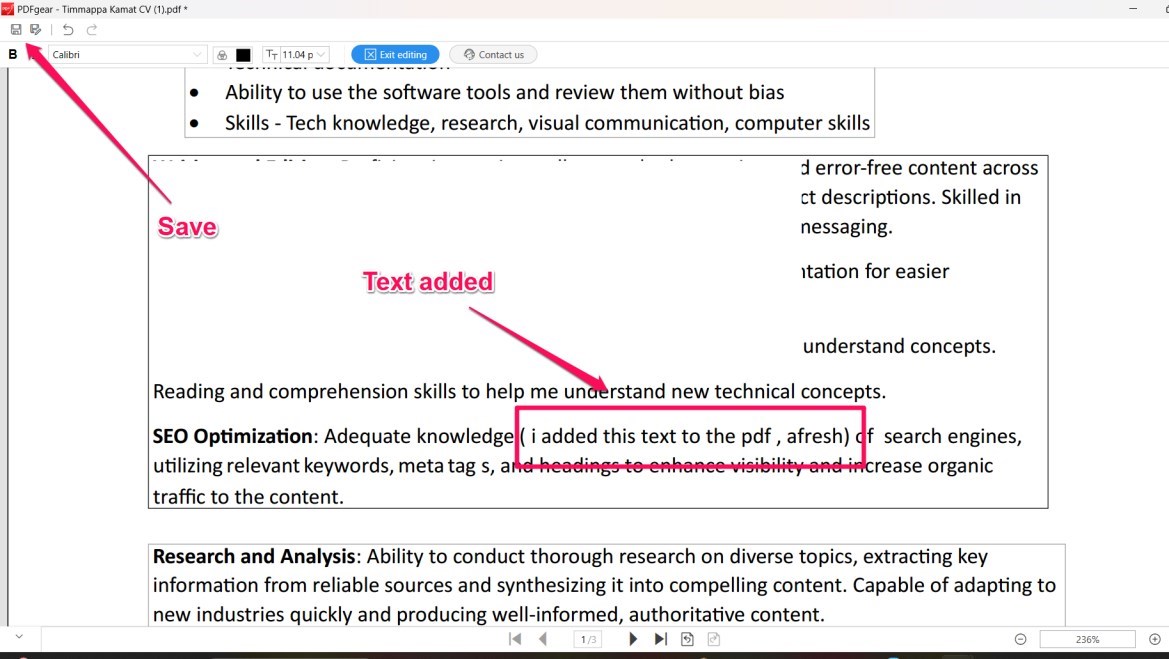
Save the Edited PDF
How to Edit a PDF on Mac Without Adobe Acrobat
Preview is a built-in tool on Mac that lets you open and work with various files. It also works as a simple PDF annotator on Mac and provides you with limited editing features. You can add shapes, redact, and add freehand drawings to your PDF file.
It also lets you share your PDF files with other applications such as OneNote, Evernote, and more.
Step 1. Right-click on the PDF file and select Open With. Now, choose the Preview app to open your file.
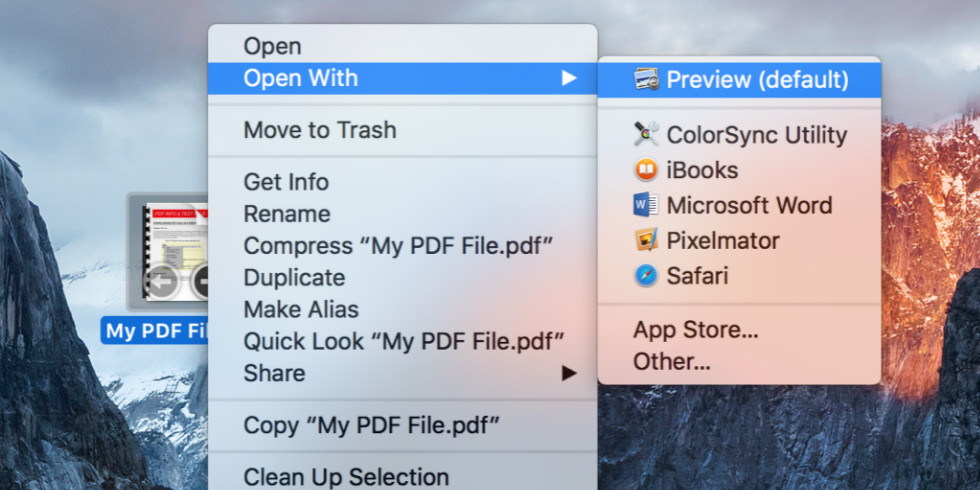
Open PDF with Preview
Step 2. Click on the pencil icon to access editing tools for Mac. Do note that there may not be many editing options available as part of the functionality.
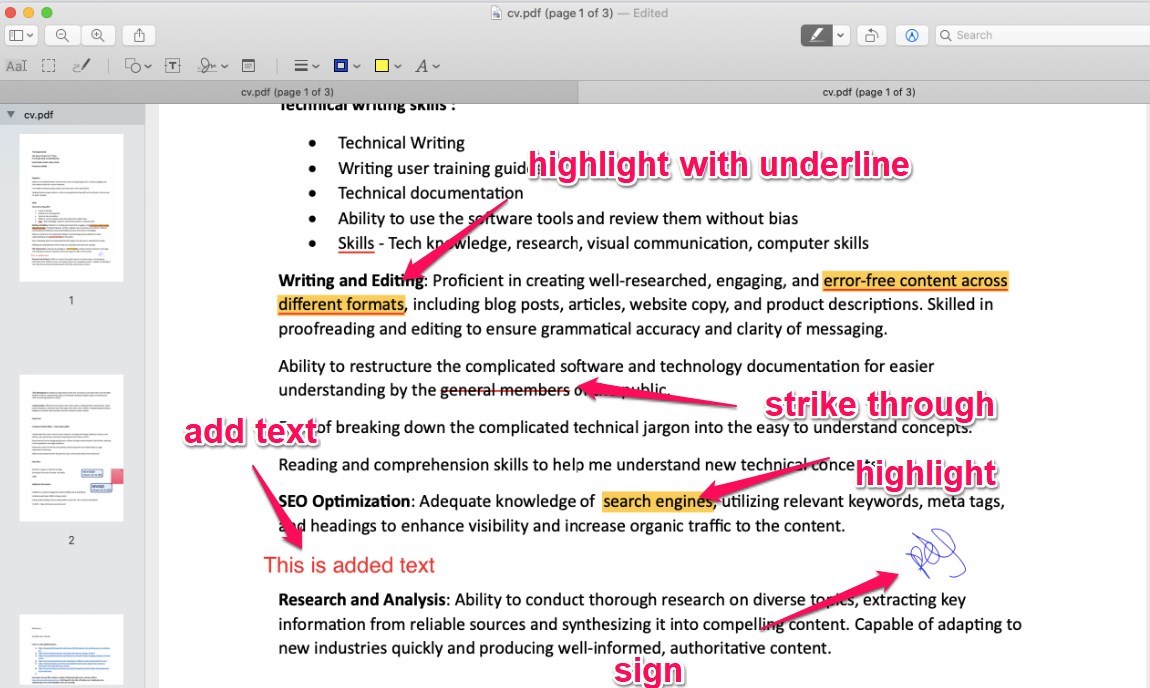
Edit a PDF in Preview on Mac
Preview is one of the excellent options for letting you edit PDF text on Mac that provides you with an easy-to-use feature.
How to Edit a PDF Online Free Using PDFgear
Another great way to edit text in a PDF online without Adobe is through PDFgear. It’s a perfect tool for on-the-go PDF file editing, allowing you to add text, shapes, and even your signature.
Step 1. Add PDF File to the Online Editor
Visit the PDFgear online editor on any of the browsers you prefer. Add your files by clicking on Upload PDF files. Browse for the PDF file you want to edit and add it to the tool. You may also drag and drop PDF files.
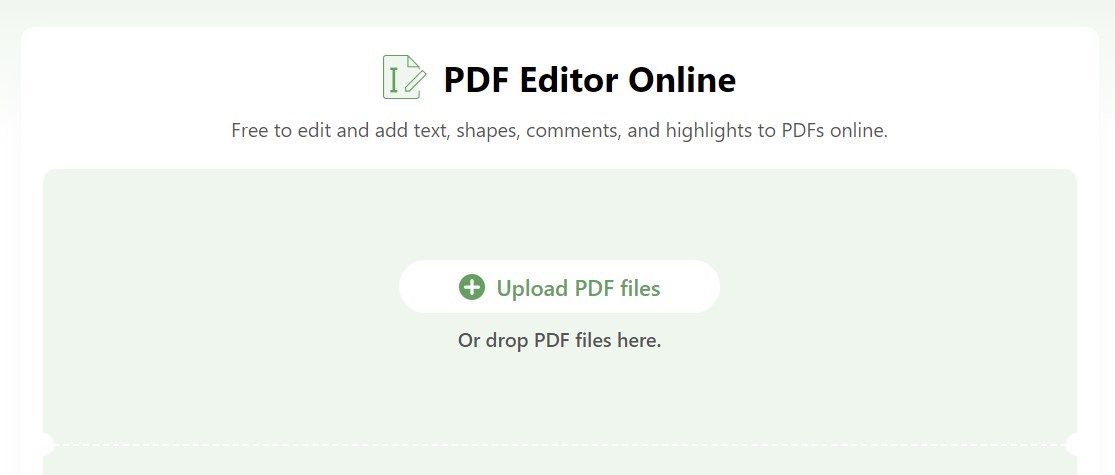
Upload PDF to the Online Editor
Step 2. Edit the PDF File
Use the functions on the top panel to make the edits. You can easily alter the text size and color editing. You can also edit and add annotations.
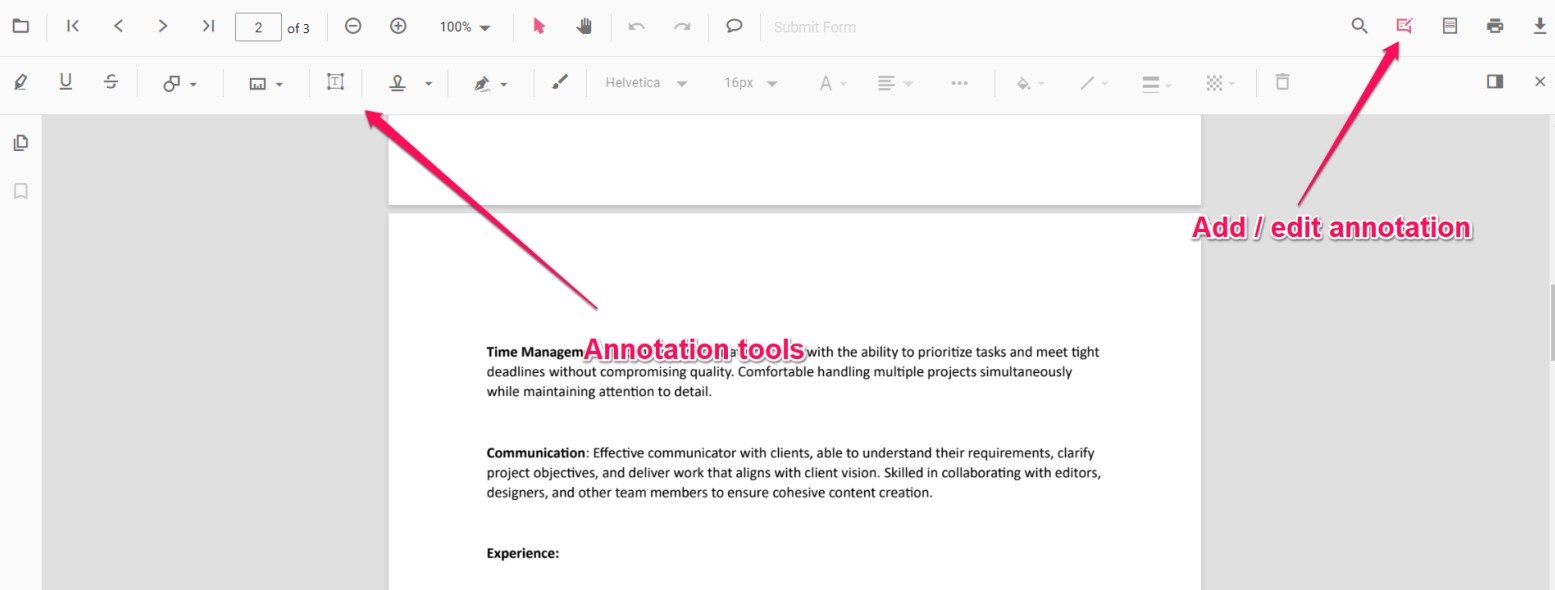
Open the Editing Tools
It also lets you add signatures to the PDF file. Click on the Add and edit annotations options in the top right corner to access the editing tools.
Step 3. Save the Edited File
Click on the Save icon to save your edited file. You can even choose the Print option.
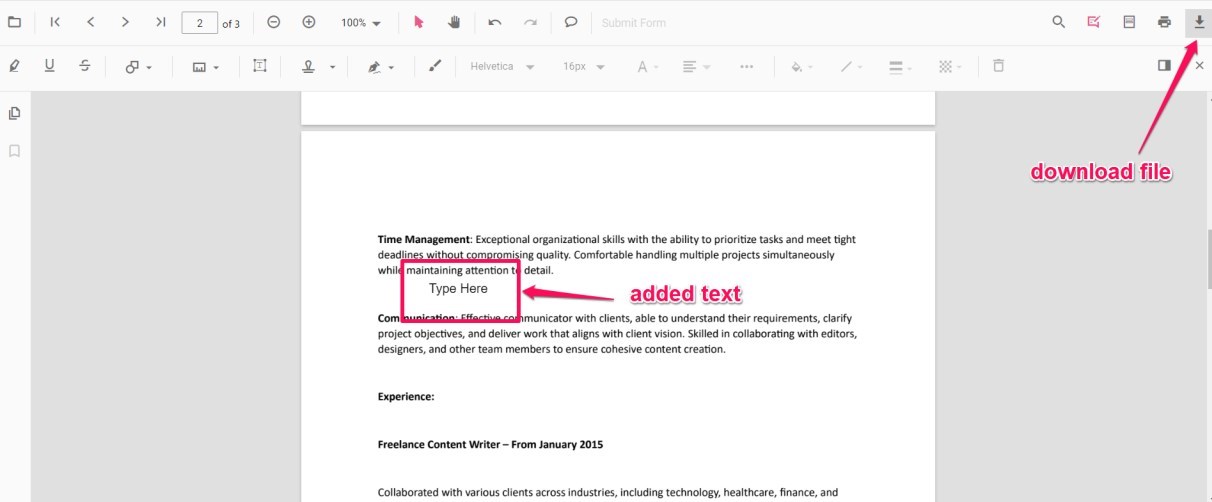
Download the Edited PDF
How to Edit a PDF File Online in Google Drive
Google Drive is a highly popular and widely used file-sharing tool. It is available on both Windows and Mac. You can also access it in an online mode on a host of platforms. It can be used for editing your PDF files if you have no Adobe installed on your computer.
Step 1: Access Google Drive through your browser. Log in with your Google account.
Step 2. Click on New > File Upload and add your PDF file to Google Drive. You can even add multiple files if you need to.
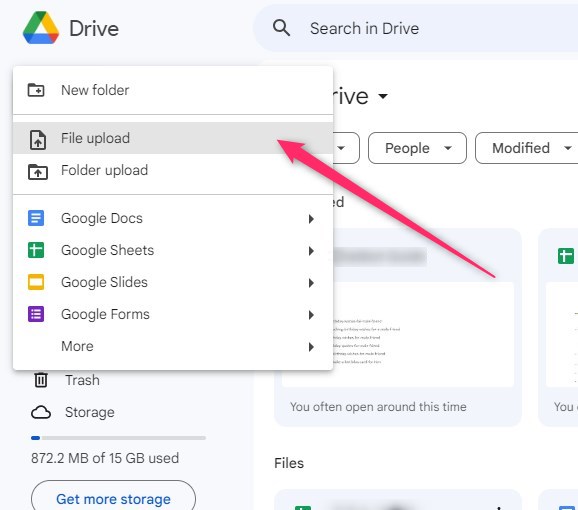
Add File to Google Drive
Step 3. Once your PDF file has been added to Google Drive, open it with Google Docs. Find your file in Google Drive, right-click on it, choose Open With, and then choose Google Docs.
Step 4. Once the file is opened in Google Docs, edit it as you would edit a Word file. Google Docs converts the file to Word format and lets you edit it seamlessly.
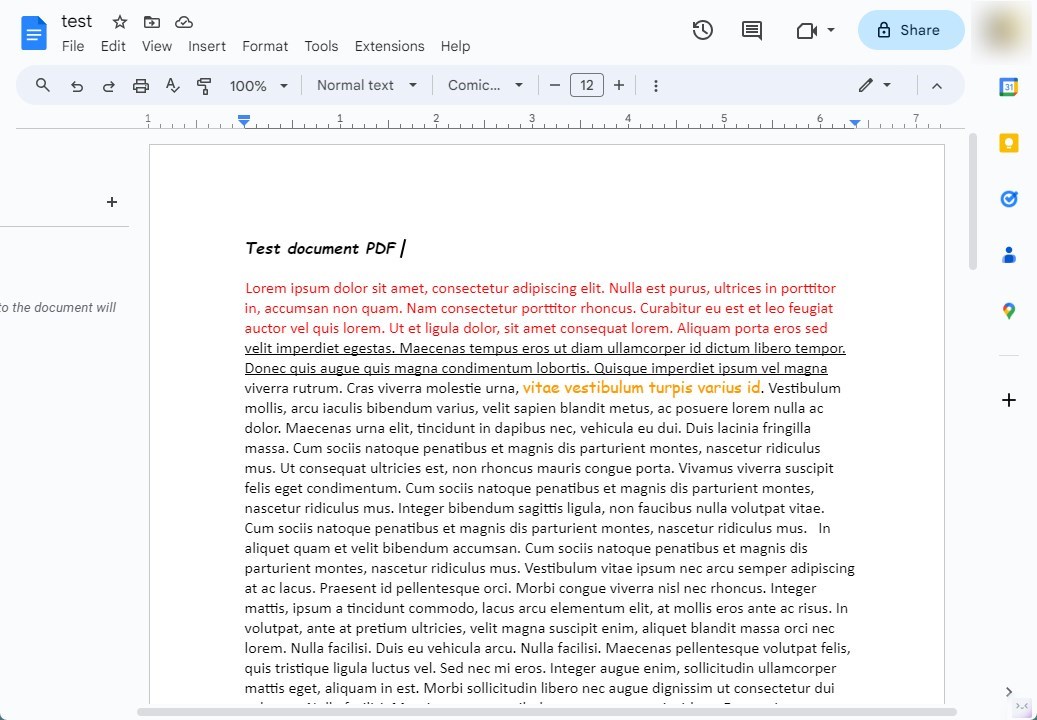
Edit a PDF File in Google Docs
How to Edit a PDF File in Microsoft Word
Microsoft Word on your device lets you edit a PDF file on its interface. To do it, you will just need to open the PDF file in Word. This will give you access to all the editing features in Word. The steps used in how to edit a PDF in Word are quite easy to follow.
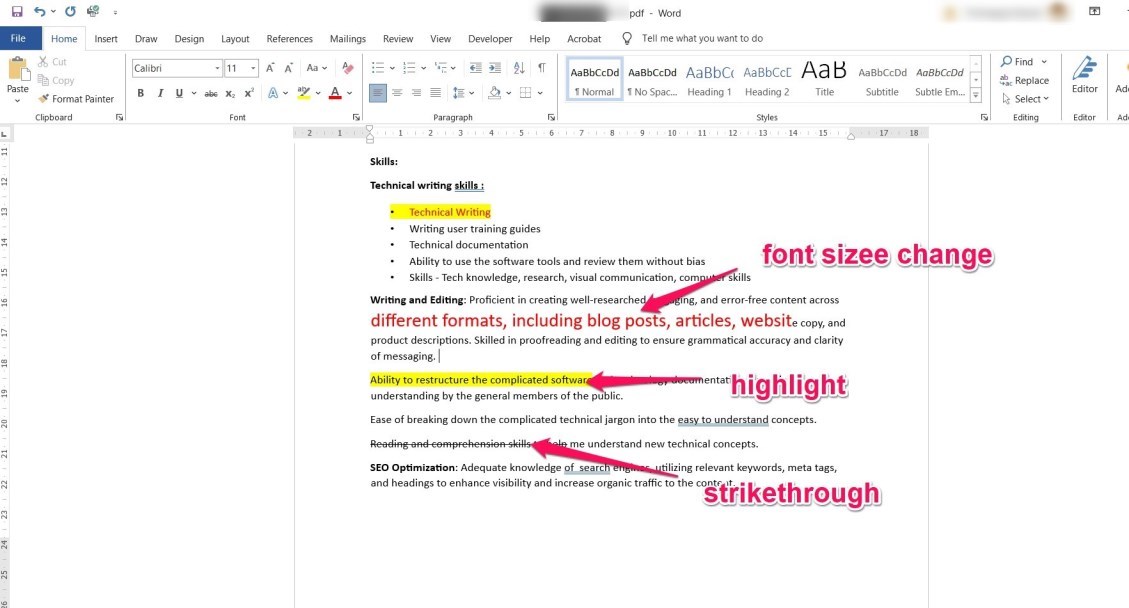
Edit a PDF in Microsoft Word
Step 1. Launch Microsoft Word. From the File > Open menu, browse and open the PDF file you want to edit.
Step 2. Apply any of the editing features that you want to add. You can access each of the editing features that Word offers.
Step 3. Once your edits are done, save the edited file. Choose File > Save and save the file as PDF. You can even use the Save as feature as well.
Some of the specific PDF features, such as annotations, digital signatures, and form fields, will not be editable in Word. For editing those, you will need specific tools such as PDFgear.
The Concluding Thoughts
Editing PDF files without Adobe is not an easy task as such. However, there are a few workarounds that can be helpful in letting you edit a PDF without Adobe.
We assume the steps outlined above should help you in this task. Among them, PDFgear is one of the best options as it offers both online and offline features to edit your PDF with ease.
