8 Proven Fixes to “Hyperlinks Not Working in PDF” Issue

Summary :
In this article, there is a list of 8 proven fixes to the issue of Hyperlinks not working in PDF. You can follow the detailed steps to solve the problem.
Table of Contents
“Create links from URLs” Not Enabled in Acrobat
When the “Create links from URLs” feature is not enabled in Adobe Acrobat, the software does not automatically convert plain text URLs (like http://example.com) into clickable hyperlinks in your PDF files.
To fix this:
- Open Adobe Acrobat (not Reader).
- Go to Edit > Preferences > General.
- Check the box “Create links from URLs”.
- Click OK and reopen the PDF.
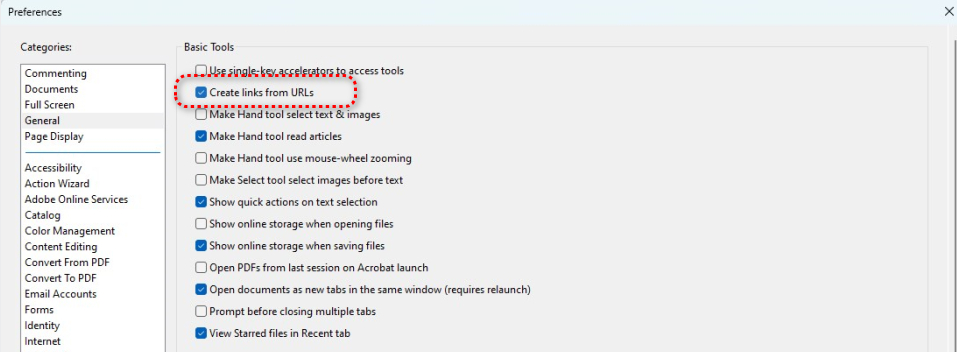
Create Links from URLs
Exporting Issue from Microsoft Word, PowerPoint, or Excel
When exporting or saving a file as a PDF from Microsoft Word, PowerPoint, or Excel, hyperlinks might not work in the resulting PDF due to one of the following common issues. You should use “Save As” or “Export” to PDF instead of “Print to PDF”.
If you use File > Print > Microsoft Print to PDF, hyperlinks will not be preserved — this method flattens the file into a static image-like PDF.
Fix: Use File > Save As or File > Export, then choose PDF and make sure to check any options to preserve interactivity (if available).
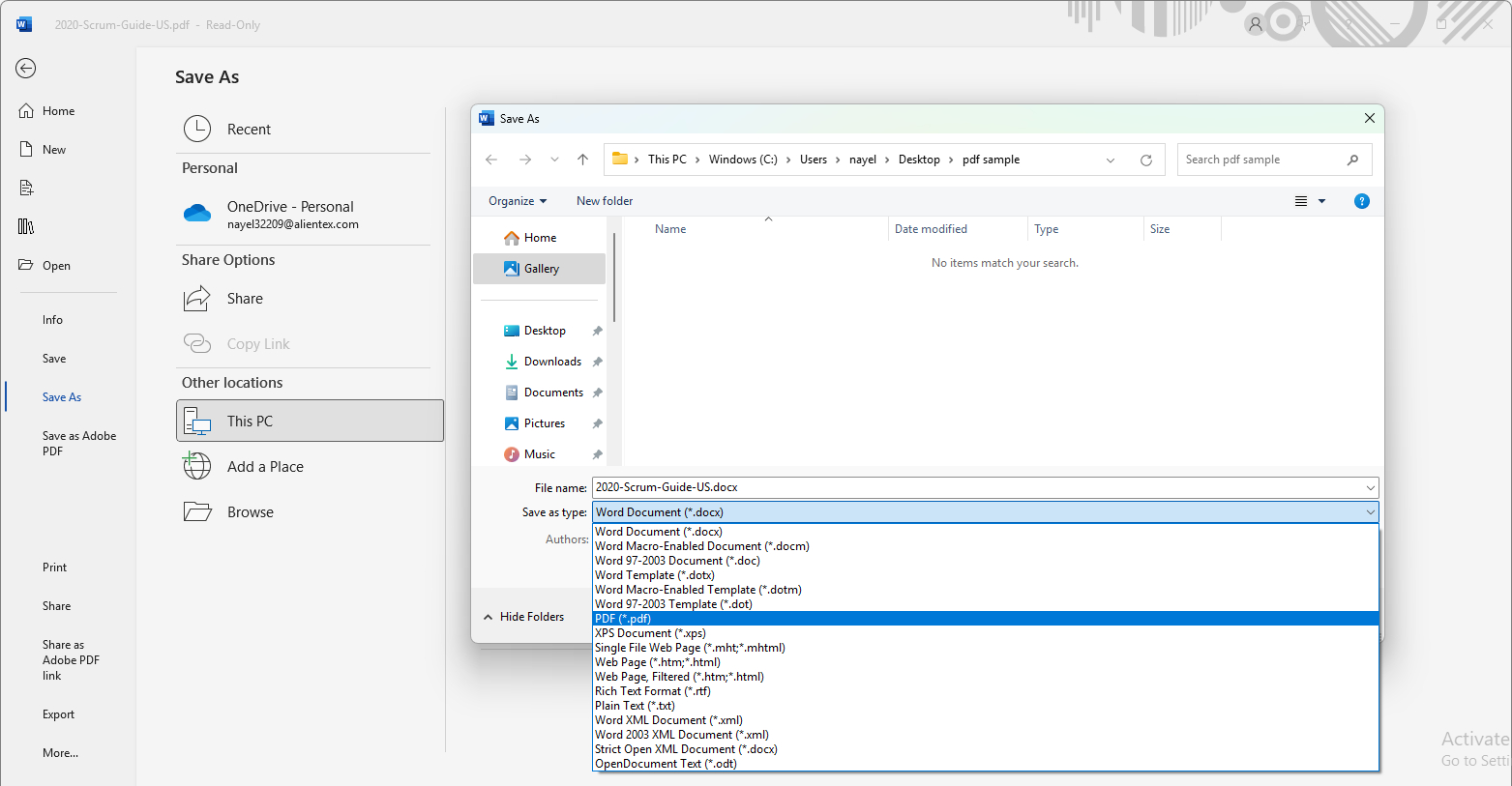
Save as PDF
Hyperlink Format Issues
Hyperlinks must be inserted using Word/PowerPoint/Excel’s Insert > Link feature. Simply typing a URL (like www.example.com) without making it an official link may not preserve it in the export.
Fix: Always insert hyperlinks using the inbuilt link inserting feature (Ctrl + K) to ensure they’re treated as active elements.

Insert Link in Word
Missing PDF Options During Export
In some Office versions:
You need to enable “Document structure tags” or check “ISO 19005-1 compliant (PDF/A)” or similar accessibility settings in the Options menu during PDF export to retain hyperlinks.
Steps:
- Go to File > Save As > PDF.
- Click More Options > Options…
- Ensure “Document structure tags for accessibility” is checked.
- Click OK and export.
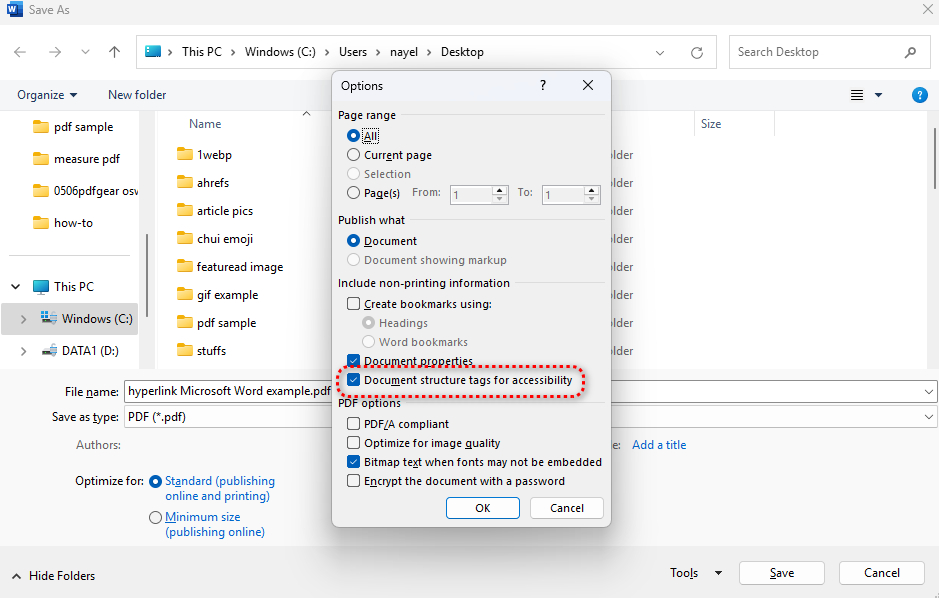
Document Structure Tags
Printed PDF in Acrobat
Cause: If you create interactive PDF and find that hyperlinks not working in PDF, this may be due to saving the file as PDF by printing, which flattens the document and makes the hyperlinks invalid.
Solution: Instead of printing to PDF, you would better use the function of “Save as PDF” to save and download file as PDF. It will preserve the interactive elements during the PDF creation process, like hyperlinks.
We take using Adobe Acrobat as an example:
- On Windows, open Adobe Acrobat and go to Menu
- Select Save as… option
- For Mac users, select File and tap Save as
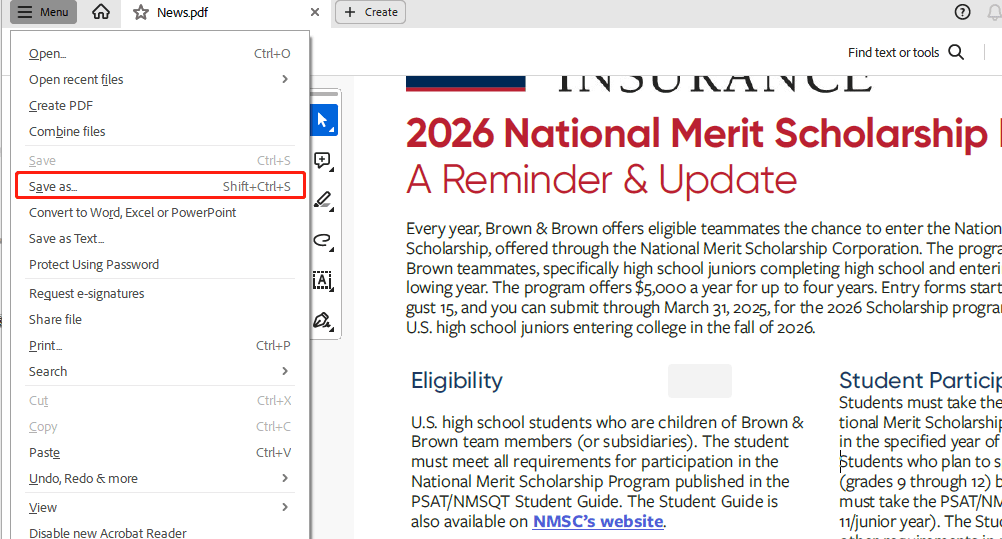
Choose Save as PDF on Adobe Acrobat
Conversion Issues
Cause: When converting documents from formats such as Word or Excel to PDF, hyperlinks may not be preserved if the conversion settings are not correct. Hyperlinks may also be lost during the conversion process.
Solution: Use a PDF converter that preserves links, such as the dedicated PDF software PDFgear. PDFgear ensures that hyperlinks are preserved during or after the conversion process.
We use PDFgear to convert file to PDF without losing links as an example:
- Open PDFgear and go to Convert to PDF page
- Choose the file type that you want to create PDF
- Upload the file and tap Convert button
- Then you can quickly get the PDF with valid hyperlinks
In addition to helping you keep original hyperlinks, PDFgear, as a professional and free PDF editor program, also supports you to add a link to a PDF, type on PDF, add annotations, etc.
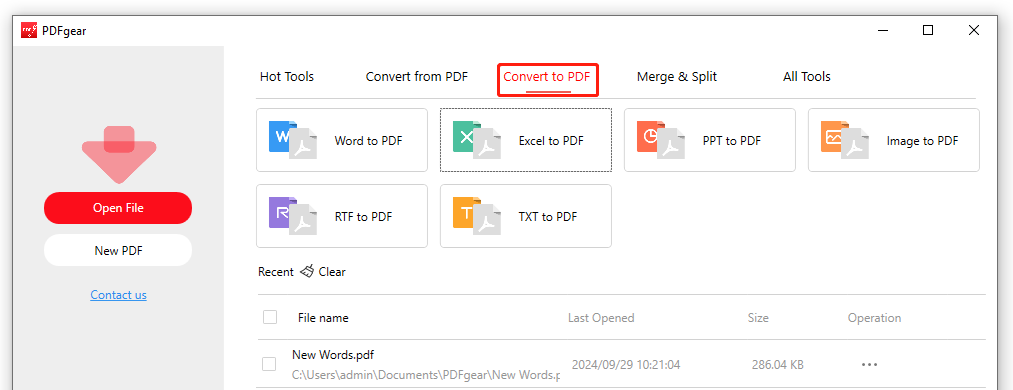
Convert to PDF with PDFgear
Security Settings
Cause: Certain security settings in PDF files can limit certain features, including the ability to follow hyperlinks.
Solution: You need to check the PDF’s security settings to allow the hyperlinks to be opened.
Steps to adjust the PDF’s security settings on Adobe Acrobat:
- Open the PDF in Adobe Acrobat
- Go to Menu > Click Protection > Choose Security
- Then navigate to view the permissions under Document Restrictions Summary
If the document has strict restrictions and you cannot modify it due to permissions, you can use another reader to open the PDF.
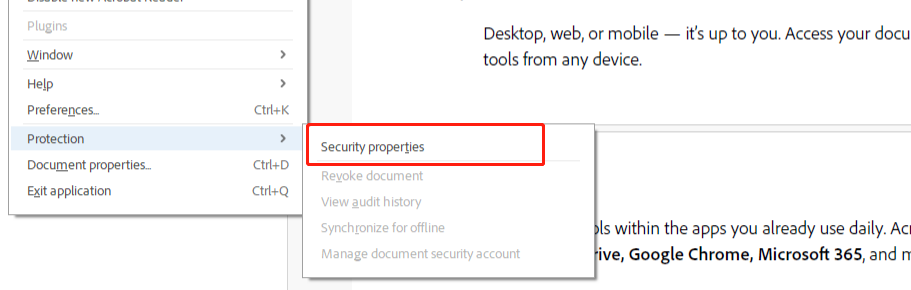
Check the Security Settings of PDF
Corrupted PDF File
Cause: In the worst-case scenario,if the PDF itself is corrupted, this may affect how hyperlinks behave. Usually, corruption can occur during the creation or transfer process.
Solution: If the hyperlinks don’t work in PDF, you need to check if the PDF was influenced during the conversion or transfer process. And an effective way to repair a corrupted PDF is to restore it to a previous version.
Follow the instructions below to view and repair corrupted PDF with Adobe Acrobat:
- Open your Windows computer
- Locate the corrupted PDF file on your device
- Right-click the file and select Restore previous versions
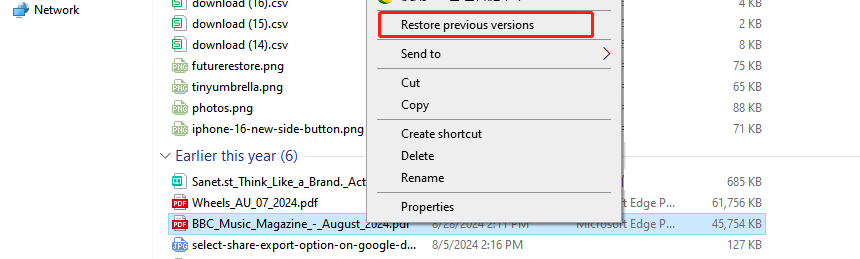
Click Restore Previous Version to Repair PDF
