How to Compress PDF Offline for Free

Summary :
Discover how to compress PDFs offline using PDFgear, Print to PDF, Preview, or Acrobat, and learn which method works best for your needs.
Table of Contents
Compressing a PDF offline means making the file smaller without uploading it online. It’s useful when you don’t have reliable internet, need better privacy, or must meet upload size limits.
This guide walks you through reliable methods to reduce PDF file size offline, from free desktop tools to built-in system options. You’ll learn:
- When to use each offline compression method
- How to reduce file size while preserving quality
- What to do if a PDF doesn’t get smaller after compression
Compress PDF Offline without Losing Quality
You can often compress a PDF offline without visible quality loss, but the result depends on what your PDF contains. Text-heavy PDFs typically compress well with minimal to no loss of quality, while scanned or image-heavy PDFs may necessitate a trade-off between file size and clarity.
A simple and reliable way to do this is using PDFgear, which works fully offline and lets you control the compression level.

Reduce PDF File Size Free Offline with PDFgear
1. Download PDFgear and open it, then click Compress PDF under Hot Tools.
2. Click Add Files to import your PDF (batch compression is supported).
3. Select a compression level:
- Low: Best for preserving quality (recommended to start).
- Medium: Balanced size and quality.
- High: Smallest file size, but image sharpness may decrease.
4. Click Compress to save the smaller PDF.
Quick quality check:
- Open the compressed PDF and zoom to 200%.
- Check small text, tables, lines, stamps, and signatures.
If the file looks less clear, use a lower compression level. For scanned PDFs, avoid using the High compression level.
Reduce PDF Size Offline without Installing Software
If you do not want to install additional software, are limited by device storage, or are using a restricted computer, you can compress a PDF offline using the Print to PDF feature. This method creates a new PDF file and may remove unnecessary data added through repeated edits.
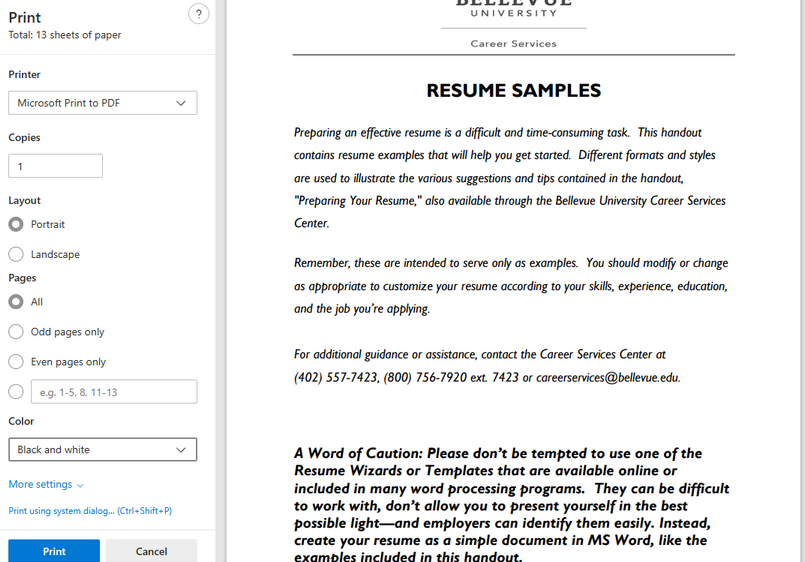
How to Compress a PDF Locally
1. Open the PDF in any viewer you already have, such as Edge, Chrome, or Preview.
2. Windows: Press Ctrl + P, select Microsoft Print to PDF, then click Print.
Mac: Press Cmd + P, select Save as PDF, then click Save.
Warning
This method works best for text-based PDFs or documents with simple layouts. For scanned or image-heavy PDFs, the file size may not change much and can sometimes increase.
How to Compress PDF on Mac Offline
On macOS, the simplest way to compress a PDF offline is by using the built-in Preview app.
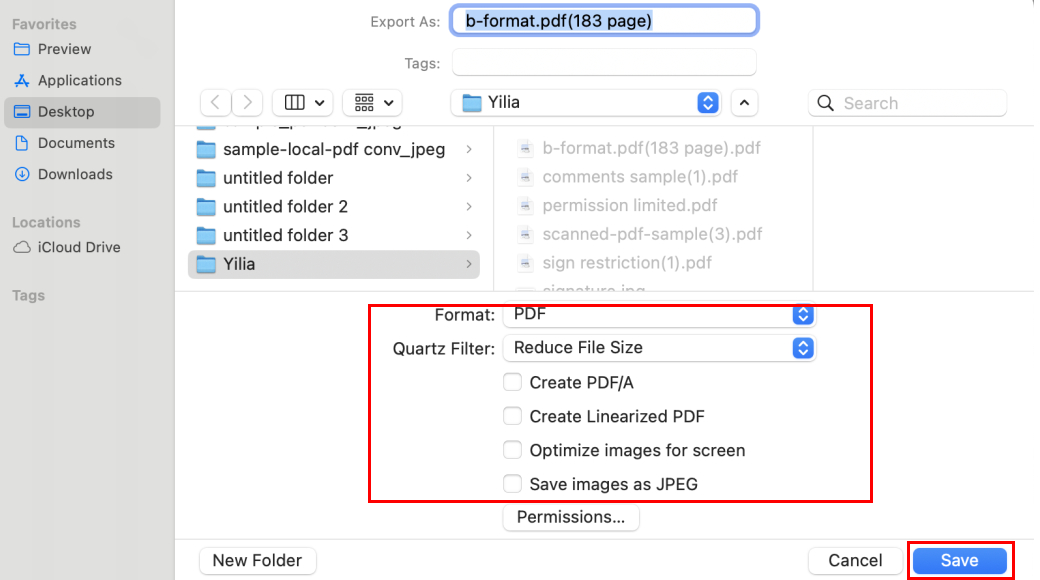
How to Reduce Size of a PDF File on Mac
1. Open the PDF in Preview.
2. Click File > Export.
3. Choose Reduce File Size under Quartz Filter.
4. Select a location and click Save.
Preview Limitations:
- Compression results can be inconsistent.
- Image quality may drop, especially for scanned PDFs.
- The exported file can sometimes be larger than the original.
- It does not offer adjustable compression levels.
For more reliable results, PDFgear is a better option. It works offline on both Mac and Windows, and provides Low, Medium, and High compression levels.
Additionally, PDFgear supports batch compression, providing better control over file size and quality.
Reduce PDF File Size in Adobe Acrobat Offline
Adobe Acrobat Pro offers offline compression with advanced controls. It is best for professional use, strict compatibility needs, or users who already have Acrobat Pro and need more control.
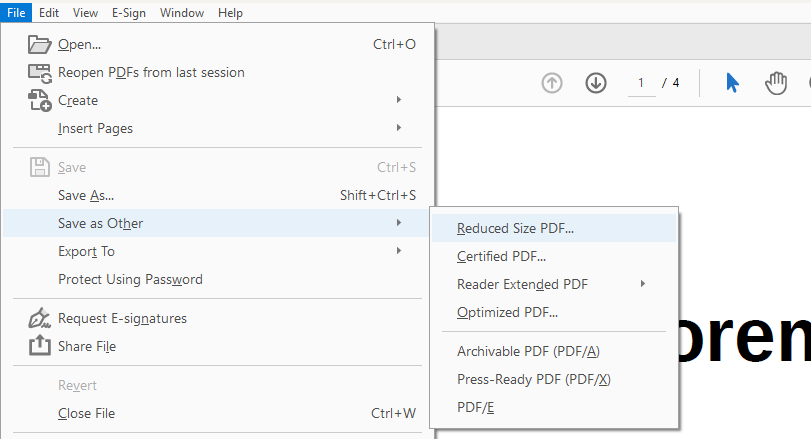
Using Adobe Acrobat to Compress PDF
1. Open the PDF in Acrobat Pro.
2. Go to File > Save as Other > Reduce Size PDF.
3. Choose a compatibility option if prompted.
4. Save the compressed PDF, preferably with a new file name.
Adobe Acrobat Compression Options: Reduce File Size vs. Optimize PDF
- Reduce File Size: A quick option with fewer settings, suitable for simple compression.
- Optimize PDF: Provides advanced control over images, fonts, and hidden data, which can help with complex files.
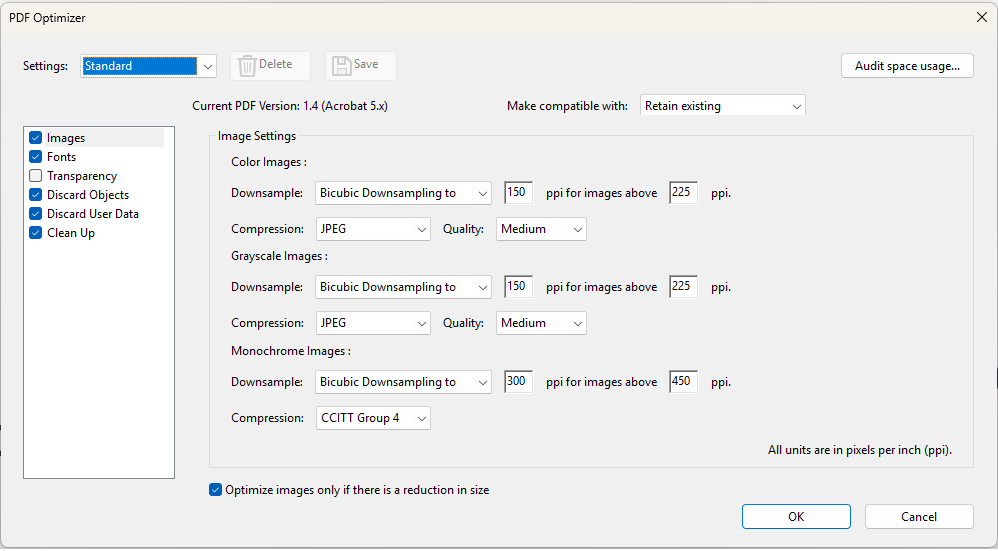
Advanced Compression Settings in Adobe Acrobat
If you only need fast, everyday offline compression and do not already pay for Acrobat Pro, a free tool like PDFgear is usually sufficient.
What to Do If a PDF Can’t Be Compressed Further
When a PDF doesn’t get much smaller after compression, it’s usually because of how the file is built. The document may have already been compressed, or most of its size may come from scanned pages, photos, or embedded fonts and graphics needed to keep it readable.
If basic compression isn’t enough, you may need to try other methods, such as splitting the PDF, cropping margins, or re-exporting the file to make it smaller.
Which Offline PDF Compressor Should You Use?
If you’re unsure which offline method to choose, the table below helps you quickly compare the most common options and select the one that best fits your needs.
| Method | Best for | Quality impact | Platform | Disadvantages |
| PDFgear (Free) | Most people | Adjustable | Windows/macOS/Android/iOS | Installation required |
| Print to PDF | No app installation | Unstable | Mac/Windows | Results may vary; file can increase |
| Preview (Mac) | Quick one-time try | Clarity may drop | Mac only | Limited control; file can increase |
| Adobe Acrobat Pro | Professional use | Advanced control | Mac/Windows | Paid; unnecessary for basic needs |
FAQs
Does compressing a PDF offline reduce quality?
Not always. Text-based PDFs can often be compressed without visible quality loss. But scanned or image-heavy PDFs may require a trade-off between file size and clarity.
How do I reduce the size of a PDF manually?
You can compress the PDF in PDFgear using Low, Medium, or High compression. This lets you reduce file size while balancing clarity based on your needs.
How can I compress a PDF locally?
In our tests, some “offline” compressors did not reduce file size without internet, which suggests they still rely on cloud servers. By contrast, PDFgear compressed PDFs entirely locally in offline mode, produced smaller files, and kept documents private.
What is the best free offline PDF compressor?
For most users, PDFgear is a good option. It works offline, is free to use, and lets you choose compression levels to balance size and quality.
How do I compress a PDF on a laptop offline?
Built-in tools like Print to PDF and Preview can reduce a PDF offline, but they are platform-limited and results may vary. For more consistent compression and better control over quality, PDFgear is a better option.
How do I make a PDF file smaller so I can upload it?
PDFgear can reduce your PDF file size using three compression levels: Low, Medium, and High. This makes it easier to balance file size and readability based on your upload needs.
Can I compress a large PDF for free without the internet?
Yes. Offline tools like PDFgear allow you to compress large PDFs for free without an internet connection. You can refer to Method 1.
Why does my PDF get bigger after compression?
This can happen when the tool re-encodes images or rebuilds the PDF in a less efficient way, which is more common with scanned or image-based files.
To fix it, try a different compression level (avoid the strongest level for scans) or use a dedicated compressor like PDFgear instead of Print to PDF or Preview.
Conclusion
Offline PDF compression helps you reduce file size without uploading files online. For most users, PDFgear is the easiest choice because it works offline and offers Low, Medium, and High compression levels.
If you cannot install software, try Print to PDF. On macOS, Preview is a quick option, while Adobe Acrobat Pro is better for professional needs.
