How to Create Digital Signature and Sign PDF Digitally for Free

Summary :
Learn how to create a digital signature and digitally sign a PDF with a certificate using PDFgear, Adobe Reader, or eSignGear, plus verification tips.
Table of Contents
You typically need a digital signature when the PDF must be:
- Legally defensible, for contracts, government forms, or official agreements.
- Tamper-proof, so you can tell if the PDF was changed after signing.
- Independently verifiable, so the signer’s identity can be confirmed.
In this guide, you’ll learn how to create a digital signature and digitally sign a PDF for free using PDFgear, along with other options like Adobe Reader and online signing tools such as eSignGear and DocuSign.
Quick Explanation: Digital Signature vs Electronic Signature
An electronic signature is usually just a visual mark, like drawing your name with a mouse or typing it into a PDF. A digital signature, however, is backed by a certificate and provides stronger protection for important documents.
Here’s a simple comparison showing the difference between digital signatures and electronic signatures.
| Type | What it looks like | What it really means | Recommended tool |
| Electronic signature | Drawn or typed name | Visual approval only | PDFgear Sign PDF online tool |
| Digital signature | Certificate-backed seal | Verifiable and protects against changes | eSignGear (online) |
Create and Add Digital Signature to PDF without Account
If you want a real certificate-based digital signature without signing up for an account, PDFgear is an easy and free tool for digitally signing PDFs.
You can create a self-signed Digital ID or import a Digital ID, place the signature field on your PDF, and save the signed file to share or email.
Create a Digital Signature (One-Time Setup)
Before you digitally sign a PDF, you need a Digital ID certificate. PDFgear supports creating a new Digital ID or importing an existing certificate.
What is a Digital ID certificate?
A Digital ID certificate is a certificate file that stores your signing identity and is used to create a verifiable signature. You can create a new Digital ID in PDFgear or import an existing one.
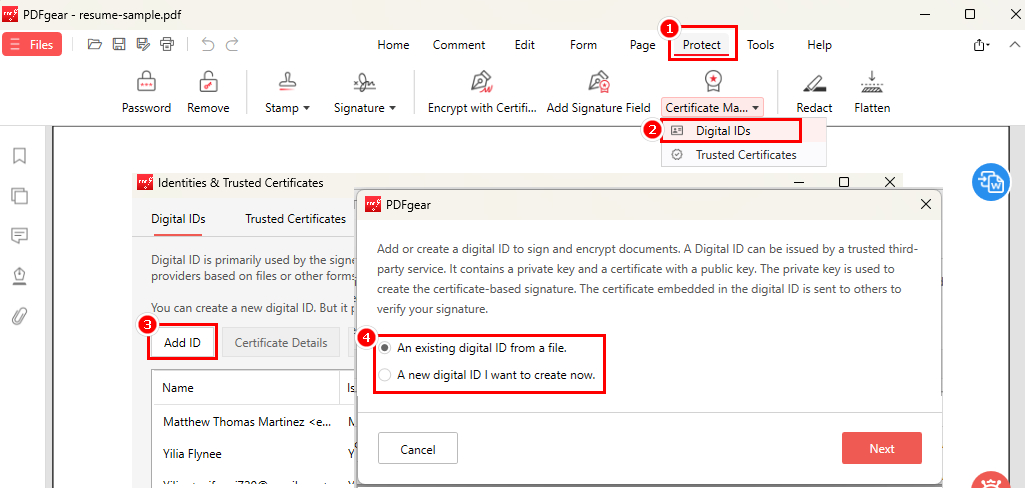
How to Create Digital Signature in PDF for Free
1. Download PDFgear for free and open your PDF file.
2. Go to Protect > Certificate Manager > Digital IDs.
3. Click Add ID and follow the on-screen steps to set up your certificate.
Digitally Sign a PDF with a Certificate
Once your Digital ID is ready, you can add the digital signature to pdf in a few steps:
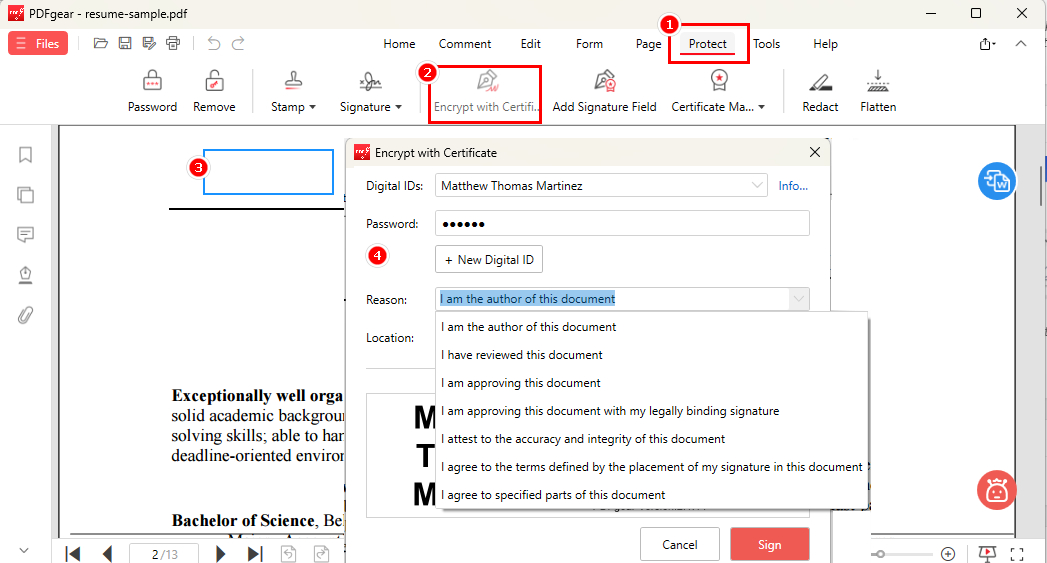
How to Digitally Sign a PDF for Free with PDFgear
1. Go to Protect and select Encrypt with Certificate.
2. Drag to place the signature field on the page.
3. Enter your certificate password and choose a signing reason.
4. Click Sign, then save the digitally signed PDF.
Why Choose PDFgear
- Works offline: Good for sensitive documents when you don’t want to upload files online.
- Completely free: No login, no watermarks, and no usage restrictions.
- True digital signatures: Supports signing with certificate, not just a drawn signature image.
Digitally Sign PDF Online with eSignGear
If you’re signing documents on your own device, PDFgear covers most needs, including certificate-based digital signatures. When the workflow involves other people, such as sending a document out for signatures or monitoring who has signed, eSignGear fills that gap.
Developed by the same team, eSignGear is PDFgear’s online signing platform for multi-person workflows. It’s built for remote signing scenarios, allowing you to request signatures, follow the signing status, and retrieve the completed document once the process is finished.

How to Add Signature in PDF Online
1. Go to the eSignGear online tool and click Sign Now to upload your PDF.
2. Log in to your account, then drag the Signature box to the right spot.
3. Choose Draw, Type, or Upload to add your digital signature.
4. To collect signatures from others, click Add Signee and assign signature fields.
You can also set reminders (every day, every business day, every 2 days, or every 7 days) and an expiration date for signees.
5. Click Finish and Send to send signing invitations.
6. Track progress and download the signed PDF when it’s complete.
How to Digitally Sign PDF in Adobe Reader
Adobe Reader supports certificate-based signing, which is different from Fill & Sign (a simple electronic signature). To sign a PDF this way, you first create a Digital ID (a certificate file) and then apply it using the Certificates tool.
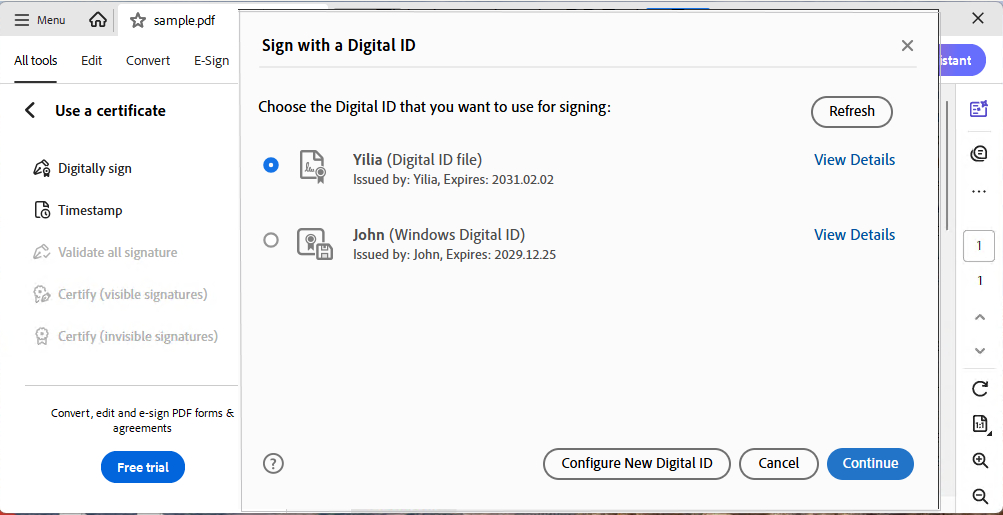
Add Digital Signature on PDF with Adobe Reader
1. Open Adobe Acrobat Reader and go to Preferences > Signatures > Digital IDs.
2. Create a new Digital ID (usually saved as a PKCS#12 / .p12 file) and set a password.
3. Open the PDF and go to Tools > Use a certificate> Digitally sign.
4. Drag on the page to draw the signature box.
5. Select your Digital ID, enter the password, and confirm.
6. Save the PDF. After signing, changes to the document can render the signature invalid.
Limitations:
- The setup is more complex, involving Digital ID files and password management.
- Certificate trust and validation can be confusing for recipients and may show as “unknown.”
- Many advanced signing workflows, such as bulk requests or team signing, usually require paid products or services.
Digitally Sign PDF Online with DocuSign
DocuSign is a widely used online e-signature platform, and it often appears when people search for how to sign a PDF online digitally. In most cases, it focuses on sending signing requests and collecting signatures, rather than creating a certificate-based digital signature.
It’s a good fit when you want to share a document with someone else to sign.
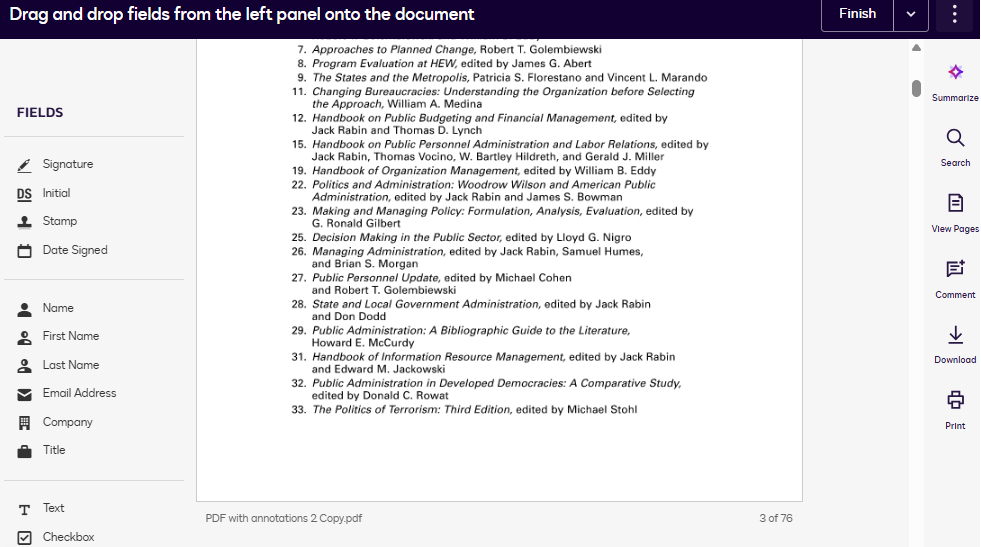
Add Signature Online with DocuSign
1. Upload the PDF to DocuSign. You’ll need to sign up and log in. (The free plan allows up to 3 files.)
2. Enter the recipient’s email address, add a message if needed, then click Sign in the upper-right corner.
3. Add signature fields in the PDF, then click Finish.
4. Send the signing invitation.
5. Download the signed document when it’s completed.
Limitations:
- It requires an account, and the sign-up and verification steps can feel a bit complicated.
- The free plan has usage limits, and even paid plans may come with different limits depending on the tier.
- The interface includes many steps and buttons, which can feel confusing for new users and are not very easy to use.
How to Verify Digital Signature in a PDF
When a PDF is digitally signed, the signature is linked to a certificate. PDF software can use this certificate to confirm who signed the document and whether the file is still intact.
This is what makes digital signatures different from electronic signatures: anyone can check whether the PDF was changed after it was signed.
How Digital Signature Verification Works
- The PDF reader checks the certificate information used to sign the document.
- It also checks the document’s integrity. Any change made after signing will break the signature and trigger a warning.
- If the signature is valid, most PDF readers will show a clear status indicator (for example, a green checkmark or a blue ribbon).
Why verify a digital signature in a PDF?
Verification is especially important for contracts, legal documents, and official documents. Because you can verify the digital signature in the PDF to confirm whether the document was changed after it was signed.
FAQs
How to digitally sign a PDF with a certificate?
You’ll need a Digital ID (certificate) first, then use a certificate-signing tool to apply it. In PDFgear (free): Open the PDF > Protect > Certificate Manager > Digital IDs > Add ID (create/import) > Encrypt with Certificate to sign.
For details and screenshots, see Method 1 above.
How to digitally sign a PDF with a time stamp?
A timestamp shows when the PDF was signed and can help keep the signature credible even after a certificate expires. An easy option is eSignGear: upload your PDF, log in, add signees, place signature fields, and send.
When you or your signees sign, eSignGear automatically records the signing time (down to the millisecond).
Can I digitally sign a PDF in Edge or Office 365?
In most cases, Microsoft Edge and Office tools let you draw or add a basic electronic signature, but they don’t support certificate-based digital signatures for PDFs.
If you need a digital signature, use PDFgear (free offline certificate signing) or eSignGear (free online signing) across Windows, Mac, iOS, and Android.
Does a digital signature expire?
The signature itself stays on the PDF, but the certificate behind it can expire. That’s one reason timestamps are useful, especially for legal or long-term documents.
How to digitally sign a PDF with a CAC?
If you’re signing government or military documents, you may need to digitally sign them with a CAC (Common Access Card). With PDFgear, you can import the digital certificate from your CAC and use it to digitally sign a PDF.
For detailed steps, refer to Method 1 above.
Conclusion
If you need a free, certificate-based way to digitally sign PDFs offline, PDFgear is the easiest option. If you need to send documents for online signing and track progress, eSignGear is a better fit. Adobe Reader is a common solution, but it usually takes more setup.
