How to Find Fonts from PDF for Free

Summary :
Learn how to find fonts from PDFs for free, including checking font name and size in text-based files, viewing font lists, and identifying fonts in scanned PDFs.
Table of Contents
Ever opened a PDF and needed to match the typography before you edit a line, verify brand consistency, or recreate the same layout in a new design? The tricky part is that font detection depends on how the PDF was created.
- Text-based PDFs: the text is selectable, so you can usually identify font in a PDF using a PDF editor.
- Scanned or image-based PDFs: the “text” is part of an image, so there may be no font data to read, and you’ll need other ways to detect font in a PDF.
In this guide, you’ll learn free methods to find fonts used in a PDF, check the font of specific text, and handle scanned documents with the right tool for the job.
Free Identify Fonts in PDF and Edit Text with Same Font
When a PDF uses multiple fonts, and you only care about one headline, paragraph, or label, it helps to use a PDF editor that shows the font for the exact text you click.
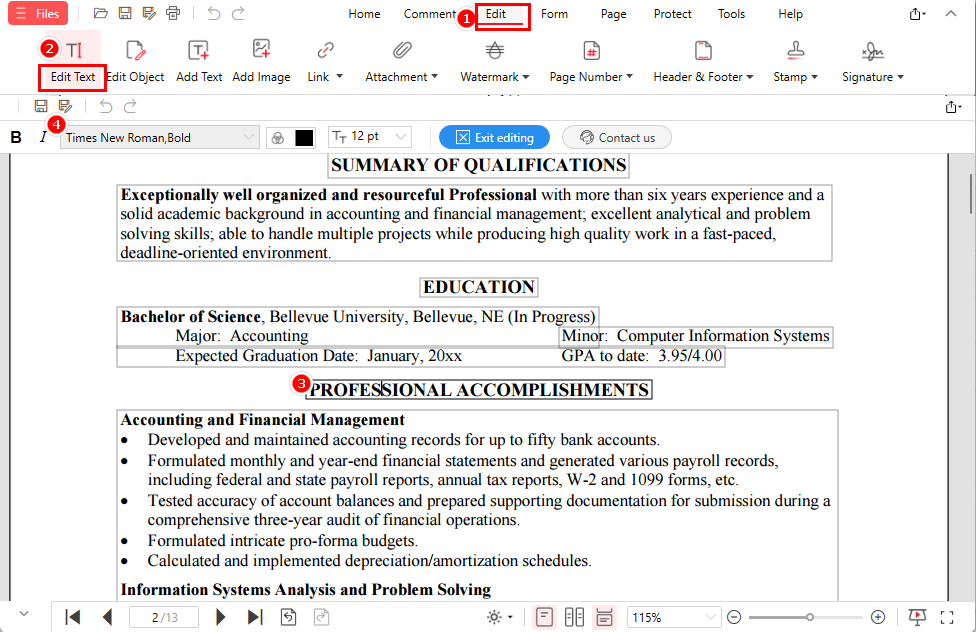
In PDFgear software, you can click a piece of text and instantly see the font name and size in the toolbar, similar to MS Word. Once you’ve identified the font, you can also edit with the same font to maintain a consistent look.
How to Check Font Type and Size in PDF
1. Download PDFgear, then open the PDF in the PDFgear software.
2. Go to Edit → Edit Text.
3. Hover over the text you want to check, then right-click it to place the cursor.
4. Check the toolbar to see the font name and font size.
5. (Optional) To edit the existing text, simply add, delete, or replace words directly while keeping the same font.
If you’d like a quick visual walkthrough of how to check font name and type in PDF with PDFgear on different platforms, watch the video below.
How to Find Fonts from PDF for Free
Recognize Fonts from Scanned PDFs or Images Online
If the text in your PDF isn’t selectable, font detection won’t work because there’s no font data to read. In that case, you’ll need a font finder from PDF that works visually.
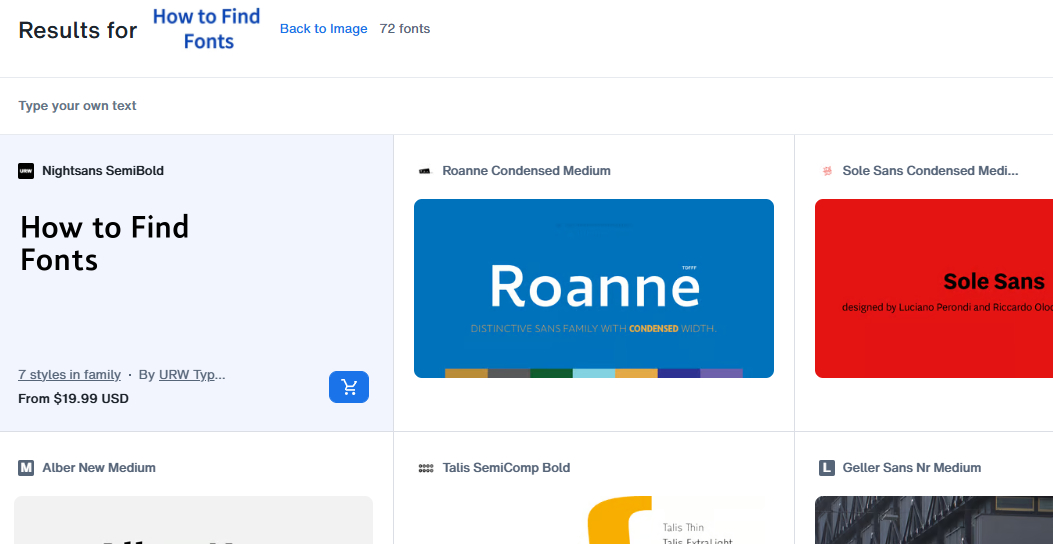
These tools match fonts by analyzing the shapes of the letters in an image and suggesting possible font results.
Find Font from JPG/PNG
1. Take a screenshot of the text you want to identify.
2. Upload the image to an online font identifier like MyFonts or WhatFontIs.
3. Review the suggested font matches.
Limitations:
- Results are visual matches, not guaranteed exact fonts.
- Accuracy depends on image quality and text clarity.
- This method cannot be used to edit PDFs or confirm embedded fonts.
Find Fonts from PDF with Acrobat (Free & Paid)
Adobe Acrobat can help you check fonts used in a PDF, but the features available depend on the version you’re using. Acrobat Reader (free) is best for viewing a document-wide font list, while Acrobat Pro (paid) is needed if you want to identify the font used in a specific piece of text.
Acrobat Reader (Free): check all fonts listed in the PDF
Check Fonts in PDF Properties
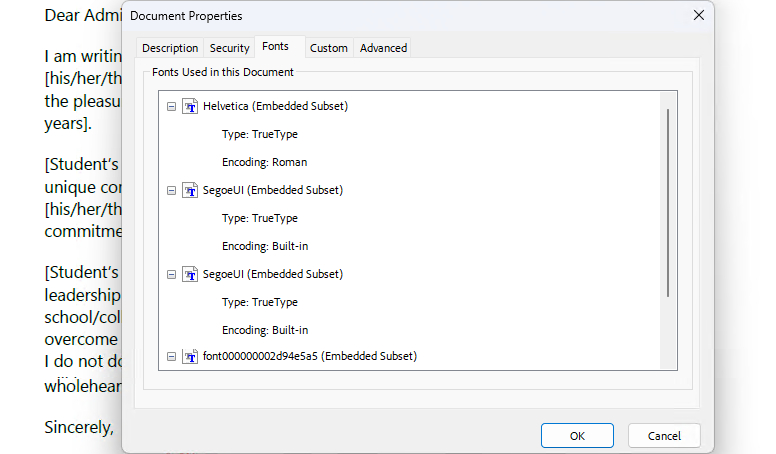
1. Open the PDF in Acrobat Reader.
2. Go to File → Document properties.
3. Open the Fonts tab.
Warning:
If the PDF is scanned or image-based, there may be no font data to show. And even in text-based PDFs, a font appearing in the list doesn’t mean it’s used everywhere.
To identify the font of specific text, you’ll need Acrobat Pro, which is paid and involves more steps.
Acrobat Pro (Paid): identify fonts in specific text
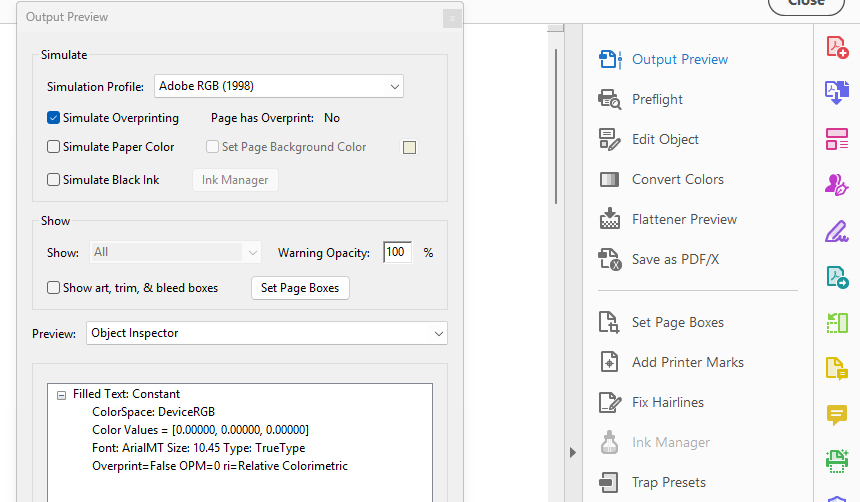
Detect Font in PDF Adobe
1. Open the PDF in Acrobat Pro.
2. Go to Tools → Print Production → Output Preview.
3. In the Preview drop-down menu, select Object Inspector.
4. Click the text you want to check, and the font name and type will appear in the panel.
FAQs
How do I identify the font name, type, and size in a PDF?
If the PDF is text-based, download PDFgear and open the file in the offline app. Go to Edit → Edit Text, then click the text to view the font name and font size in the toolbar.
If the PDF is scanned or image-based, there may be no font data to read. So you’ll need an online font finder from PDF (upload a screenshot of the text) to get possible matches.
Can I detect fonts using Mac Preview?
Mac Preview can display PDFs, but it usually doesn’t show detailed font information. If you want to find fonts from PDF, it’s often easier to use a PDF font finder that works across platforms.
For example, in Method 1, you can use PDFgear to check the font name and size by clicking the text in Edit Text mode.
How do I find fonts in scanned PDFs?
Scanned PDFs don’t contain real text, so you’ll need visual font identifiers. Take a screenshot of the text and upload it to tools like MyFonts (WhatTheFont) or WhatFontIs to get possible font matches.
Why is there no font info in Document Properties?
This often happens when the PDF is scanned, uses subset fonts, or when the viewer only shows limited font details. A font list also doesn’t always reflect which font is used in specific text.
How can I check if fonts are embedded or subsetted?
Open the PDF in a viewer that shows font details, then go to the Fonts panel (often under File → Properties → Fonts). Look for labels such as Embedded or Embedded Subset next to each font name.
Embedded fonts include the full font in the PDF, while subsetted fonts include only the characters used in the document, which can make font names look odd and limit what you can detect or type when editing.
Conclusion
Finding fonts in a PDF is easiest when you match the method to the file type. For text-based PDFs, PDFgear is a simple way to check the font used in specific text by clicking it. For scanned PDFs, you’ll need an online font identifier using a screenshot. And if you only want a document-wide font list, Acrobat Reader can show it.
After identifying the font, you can keep the same font when editing, adjust font size, or embed fonts for consistent display across devices.
More Related Articles
