How to Sign a PDF on iPhone for Free

Summary :
Learn how to sign a PDF on iPhone for free, plus practical tips for editing, filling forms, sharing, and managing signed documents.
Table of Contents
Signing documents on an iPhone has become part of everyday work. Contracts arrive by email, forms need to be completed on the go, and approvals can’t wait until you’re back at a computer.
Fortunately, there are several ways to sign a PDF on iPhone, from built-in tools like Markup to more flexible options such as PDF apps and online signers. Each method works differently depending on your needs.
Start Here: Sign PDF on iPhone
Sign PDF on iPhone Securely and Privately:

1. Open PDFgear online signer in a mobile browser and select the PDF you want to sign.
2. Create your signature by drawing, typing, or selecting an image. When choosing an image, you can use one from your photo library, files, or take a photo on the spot.
3. Place the signature where needed and drag to adjust its size.
4. Save the signed PDF.
Security note: Your file is processed on your device, so it is not uploaded to external servers during the signing process.
For more advanced features, such as saving multiple signatures for reuse or editing existing PDF text, you can download PDFgear for iOS from the Apple App Store.
Sign PDF on iPhone for Free
Quick Answer: What’s the Best Way to Sign a PDF on iPhone?
Before diving into the detailed steps, here’s a quick comparison of the most common PDF signing methods on iPhone.
| Tools | Best For | Signature Methods | Install App | Save/Reuse Signatures | Directly Edit Text |
| Markup | Sign from Mail or Files | Draw | No | Yes | No |
| Online Signer | No install, quick web signing | Draw/Type/Image | No | No | No |
| PDFgear App | Edit and sign complete PDFs | Draw/Type/Image | Yes | Yes | Yes |
| Adobe Acrobat | Acrobat subscribers | Draw/Type/Image | Yes | No | Yes |
Sign PDF on iPhone Using Markup
The built-in Markup tool is the easiest way to sign a PDF on iPhone. It works directly inside apps like Files and Mail, so you can open a document and sign it without installing any third-party apps.
It is ideal for quickly signing simple documents, especially email attachments or forms that don’t need editing.
Add Signature to PDF iPhone
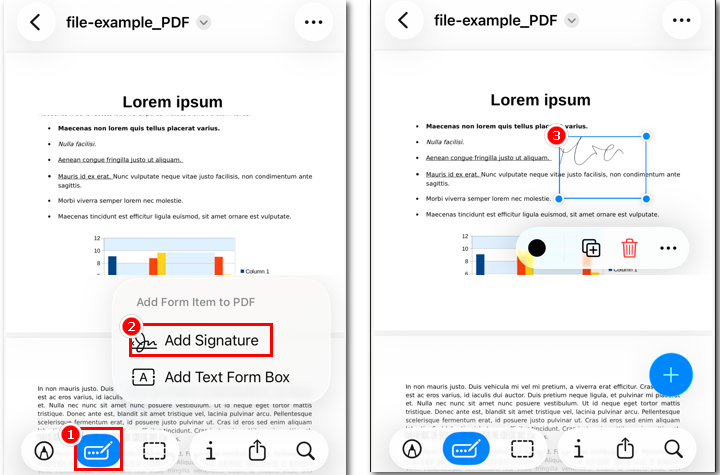
1. Open the PDF in Files or Mail.
2. Tap the Markup icon, then select the plus button.
3. Choose Signature, then tap Add Signature.
4. Draw your signature using your finger or Apple Pencil.
5. Adjust the size and position as needed.
6. Tap Done to save the document.
Limitations of Markup
However, Markup can feel limited in more complex situations. For example, it may not be enough if you need to:
- Upload and reuse a signature image.
- Switch between multiple signatures.
- Edit the PDF before signing.
- Fill out complex forms.
- Sign more formal or business documents.
In these cases, using a more flexible PDF editor can make the process much easier.
How to Esign PDF on iPhone with PDF Editor App
Unlike the built-in Markup tool, a PDF editor app gives you more control when working with documents on iPhone. With PDFgear, you can add signatures in multiple formats to suit different needs, as well as fill out forms and edit the document before signing, all in one place.
Fill and Sign PDF on iPhone Free with PDFgear
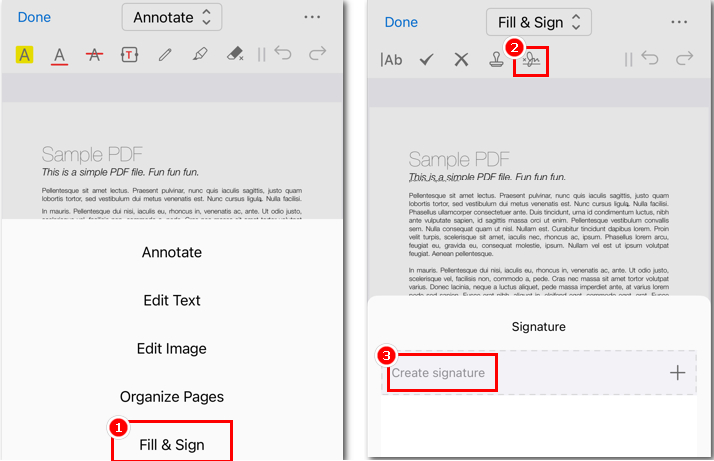
1. Download PDFgear and open your PDF in the app.
2. Tap Edit at the top, then select Fill & Sign from the toolbar.
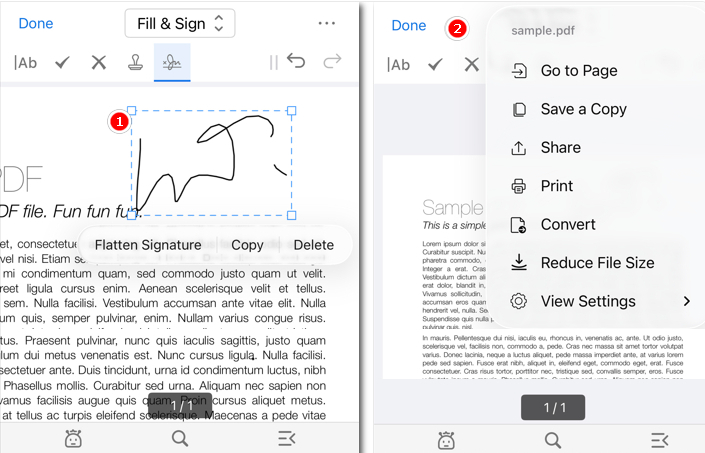
Electronically Sign PDF on iPhone with PDFgear
3. Tap the Signature tool and create your signature by drawing, typing, uploading an image, or taking a photo.
- Drawing works best for a natural handwritten signature, especially for formal documents.
- Typing is faster for quick approvals or simple forms.
- Uploading an image lets you reuse a saved signature or capture one from paper by taking a photo on the spot.
4. Place and resize the signature as needed.
5. Tap the signature to copy or reuse it. If needed, flatten it to make it part of the PDF so it cannot be edited or removed.
6. Save or export the signed PDF, or share it directly via email from PDFgear.
Why Use PDFgear Instead
- Switch between signature styles to match different documents, such as handwritten for formal use and typed for quick approvals.
- Complete forms and add information before signing without switching between apps.
- Flatten signatures so they become part of the document and cannot be easily edited or removed.
- Modify the existing text, adjust fields, and refine the document layout to make it more suitable for contracts and business documents.
Sign PDF on iPhone Online without App
If you prefer not to install any apps, you can sign PDFs directly in your browser using PDFgear Online Signer. This is the fastest way to sign a PDF on iPhone without installing any app, perfect when you just need to sign and send a document quickly.
Unlike many online PDF services that transfer files to third-party servers for processing, PDFgear keeps your file on your device throughout the signing process, helping protect sensitive information and maintain privacy.
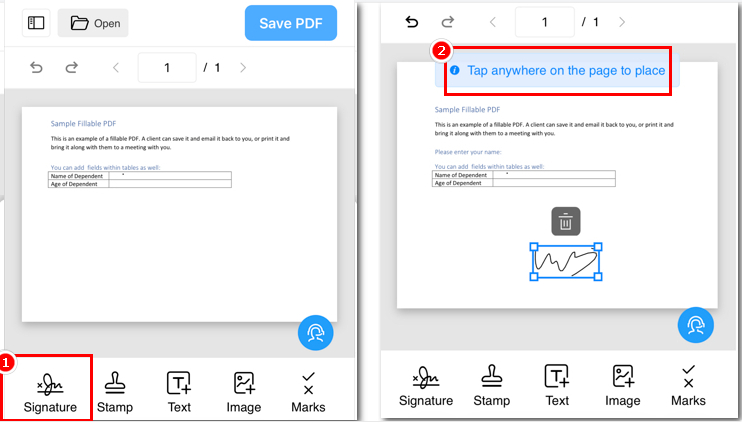
Sign PDF on iPhone Free Online with PDFgear Online Signer
1. Access PDFgear Online Signer.
2. Upload your PDF file and select Signature.
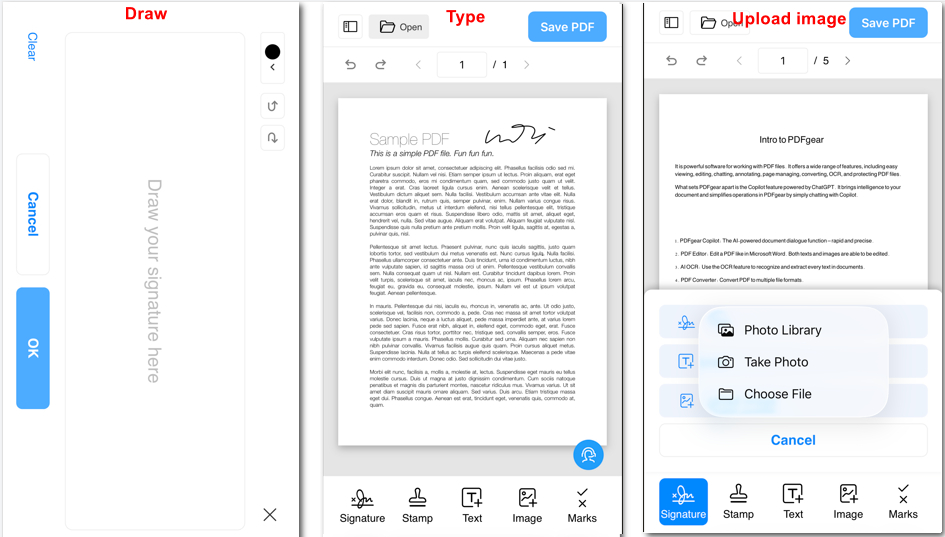
Three ways to add a signature in PDFgear Online Signer
3. Add your signature by drawing it, typing your name, or uploading an image.
4. Place and adjust the signature as needed.
5. Click Save PDF to download the signed PDF.
Add Signature to PDF on iPhone with Acrobat Reader
If you prefer an Adobe solution, Acrobat Reader is the official way to sign PDFs on iPhone. The Fill & Sign feature is now built into the app, so you can add signatures without installing a separate tool.
It offers a more structured signing experience, especially for forms and formal documents.
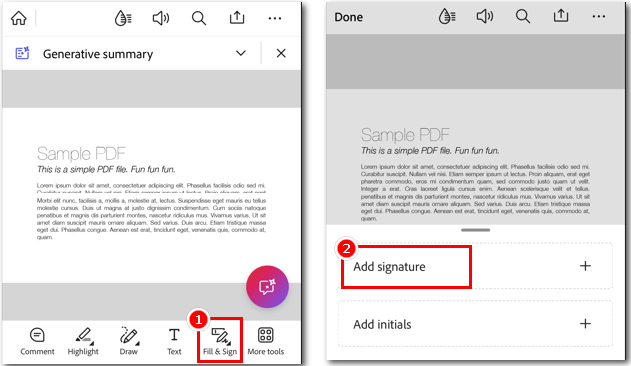
Sign a Document on iPhone Using Adobe Fill & Sign
1. Open the PDF in Adobe Acrobat Reader.
2. Tap Fill and Sign.
3. Add your signature by drawing it, typing your name, or uploading an image.
4. Place the signature in the document and adjust it as needed.
5. Save the signed PDF.
Limitations of Adobe Acrobat Reader
- You may need to sign in with an Adobe account.
- The interface can feel heavier for quick signing tasks.
- Editing existing PDF text is a paid feature.
- Only one saved signature is supported at a time.
If you want a lighter option without account setup, tools like PDFgear or an online signer may be more convenient.
What to Do After Signing PDF on iPhone
After signing a document, you may need to take a few additional steps before sending or saving it. Here are some common actions you can do directly on your iPhone.
Share the signed PDF
PDFgear for iOS lets you share signed documents directly from the app. Tap the three-dot button on the document > Select Share > Choose your preferred method, such as Mail, AirDrop, or other apps.
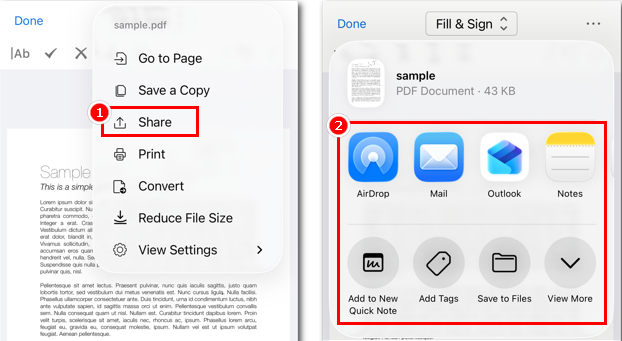
Sign and Share PDF with PDFgear for Free
Fill out PDF forms
Some documents require more than just a signature. You may need to complete form fields before sending. Open your PDF in PDFgear, tap Edit, then Fill and Sign, and tap any field to enter text.
Edit text in a PDF
Before signing, you might need to correct or update information. PDFgear allows you to edit existing text directly in the document, instead of adding a text box on top, which helps keep the formatting clean.
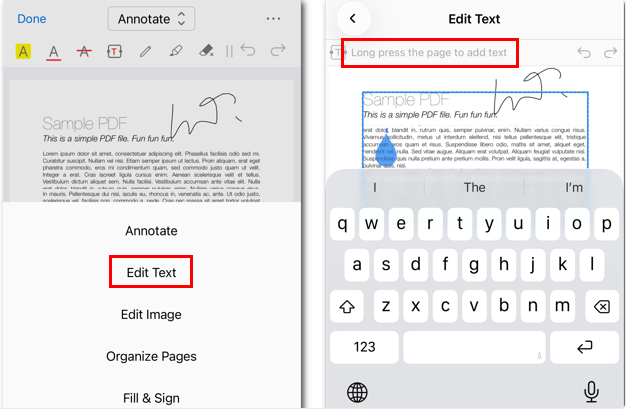
Edit the Existing Text in PDF with PDFgear on iPhone
Save and reuse signatures
If you sign documents frequently, saving signatures can save time. Adobe Acrobat typically stores one signature and one set of initials. In comparison, PDFgear lets you save multiple signatures and switch between them when needed.
Make signatures permanent
A signature added to a PDF can sometimes be edited or removed. To prevent this, you can flatten the signature. Or using the Print option embeds the signature into the document, making it part of the file and difficult to change.
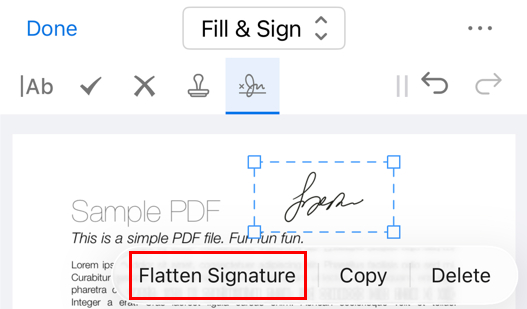
Sign PDF on iPhone and Flatten the Signature
FAQs
How to sign a document on iPhone without Markup?
You can use a dedicated PDF signing tool instead. In PDFgear for iOS, open the PDF > tap Edit > Fill & Sign > Signature > create and add your signature > save or share the file.
Can I upload an image of my signature to a PDF on iPhone?
Yes. PDFgear supports image-based signatures. Open the PDF in PDFgear > Edit > Fill and Sign > Signature > Upload Image. If you do not want to install an app, you can also use PDFgear Online Signer to upload the PDF, add the image signature, and finish the signing process online.
How to sign with Apple Pencil?
Yes. Any tool that supports drawing signatures can work with Apple Pencil. In PDFgear, open the PDF on your iPhone or iPad > tap Edit > Fill and Sign > Signature > Draw > sign with Apple Pencil > place the signature > save the PDF.
How to add a signature in iPhone Mail?
If you want the built-in way, open the attachment in Mail > tap Markup > tap the plus button > Signature. For more formal signature options, save the file to PDFgear > Edit > Fill and Sign > Signature > Create Signature > add and place the signature > tap the three-dot button > Share > choose Mail. You can check the details in Method 2.
Is signing a PDF on my iPhone legally binding?
In many cases, yes, but it depends on the document type and local rules. For a more formal workflow, PDFgear lets you prepare the file more carefully before signing, while its online signing tool can be better for quick personal documents.
What is the difference between an electronic signature and a digital signature?
An electronic signature is any form of signing a document electronically, such as drawing, typing, or adding an image of your signature. This is what most tools on iPhone use for everyday documents.
A digital signature is more secure and includes encryption and identity verification. It is typically used for contracts or documents that require higher levels of security.
If you want a more detailed explanation, see this guide on the difference between e-signature and digital signature.
Conclusion
In the end, the best way to sign a PDF on iPhone comes down to how you want to work. Markup is the easiest option for quick signing, while PDFgear offers more flexibility for filling out forms, editing content, and using different signature styles.
For a faster option without installing anything, PDFgear Online Signer keeps the process simple and convenient.
