How to Draw on a PDF for Free

Summary :
Explore easy ways to draw on a PDF without paywalls, discover each tool’s pros and limits, and start editing, annotating, and sharing smoothly with PDFgear today.
Table of Contents
Drawing on a PDF is commonly used for adding handwritten feedback, sketching ideas, or filling out forms. Different tools behave very differently when it comes to erasing, stroke accuracy, file compatibility, and long-term editing. This guide compares the most practical free options and explains when each one actually works best.
Draw on PDF Online for Free with PDFgear
If you want to freehand draw on a PDF document online or quickly insert shapes like arrows and circles into a PDF, the PDFgear online editor is one of the simplest solutions.
PDFgear is free, requires no installation, and adds no watermark. It supports stable annotations that display consistently across PDF viewers, making it reliable for sharing and printing.
Steps
1. Open the PDFgear online PDF editor. Click Select PDF File to upload your PDF.
2. On the upper menubar, select the Draw Ink or Add Shape tool.
3. You can adjust the stroke color, thickness, or transparency.
4. Draw directly on the PDF.
5. Click the Download PDF button to download the edited file.

How to Draw on PDF Online for Free
Trade-offs
This method does not allow you to erase individual strokes selectively. You can only undo recent actions or white out on PDF.
If you expect frequent corrections or iterative drawing, a PDFgear offline app may be more suitable.
Draw on PDF for Free with PDFgear App
If you want to draw on a PDF without Adobe Acrobat and are also wondering how to erase drawing in PDF, the PDFgear app for Windows & Mac is the best choice. It’s ideal for handwritten feedback, detailed annotations, and flexibly erasing individual strokes.
Apart from flexible PDF annotations, PDFgear also provides powerful PDF editing features, such as editing existing images in PDF.
Steps
1. Download and install PDFgear on your computer. Click Open File to open the PDF file.
2. Go to the Comment section and choose the Shape or Ink tool.
3. Customize color and line width in the pop-up menubar below.
4. Draw on the PDF page. Click Eraser to erase individual strokes or clear all drawings if needed.
5. Click Save as to save the modified PDF.

How to Draw on PDF in PDFgear
Some PDF editors automatically smooth handwriting strokes into vector curves, which will alter the original pen movement. The PDFgear app preserves the original strokes, avoiding unwanted smoothing effects. Whether you’re drawing on or signing on the PDF, your pen movement will look natural.
Moreover, drawings remain predictable and readable across different PDF tools, making PDFgear well-suited for ongoing edits.
Draw on PDF on Mac Using Preview
If you’re using macOS, you can draw on PDF using Preview on Mac, which is built into the system and requires no extra installation.
Preview is suited for quick, local drawing tasks. It works well for sketching ideas or marking up documents when you want simple tools and automatic shape correction without installing third-party software. With iPadOS 26, the Preview app allows you to draw on PDF on iPad.
Steps
1. Open the PDF with Preview.
2. Click the Markup toolbar.
3. Select a Sketch or Shape tool.
4. Draw on the PDF. Let Preview auto-correct rough shapes if needed.
5. Save the file.
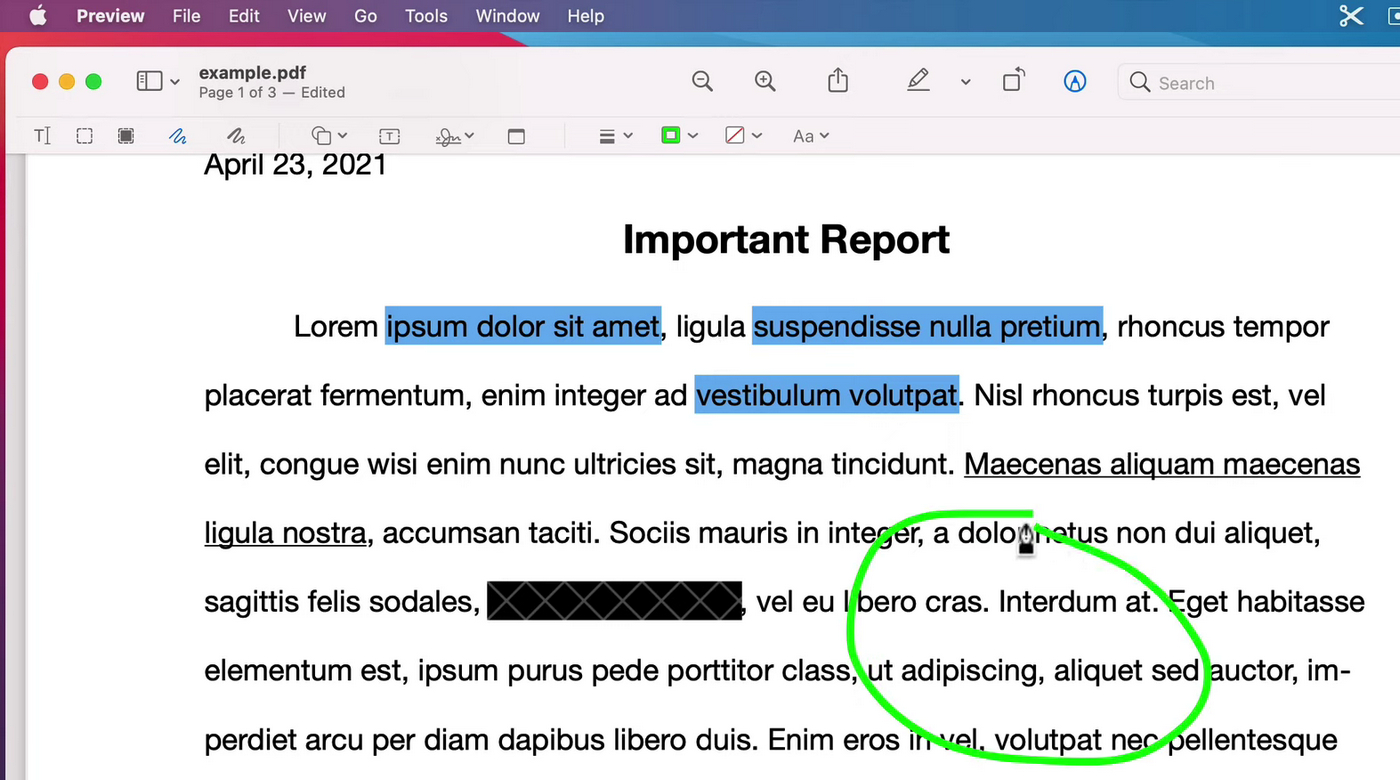
How to Draw on PDF in Preview on Mac
Pro Tip:
Preview does not offer a true eraser tool, so correcting individual strokes is difficult. Drawings may also display inconsistently in some non-Apple PDF viewers, especially after further edits elsewhere. Use PDFgear app for Mac to draw on PDF without these issues.
For a wider look at Mac-compatible PDF drawing tools and techniques, our full guide on how to draw on PDF on Mac covers more options in detail.
Draw on PDF on Windows Using Microsoft Edge
On Windows computers or laptops, you can open a PDF directly in Microsoft Edge and use its built-in drawing tools.
Edge is suitable for temporary or lightweight drawing tasks. It works best for quick highlights, simple handwritten notes, or one-time markups when no dedicated PDF editor is available.
Steps
1. Open the PDF in Microsoft Edge.
2. Click the Draw or Highlight tool.
3. Choose a preset color and line thickness. Then draw on the PDF.
4. Use the Erase tool to remove unwanted strokes.
5. Save the file.
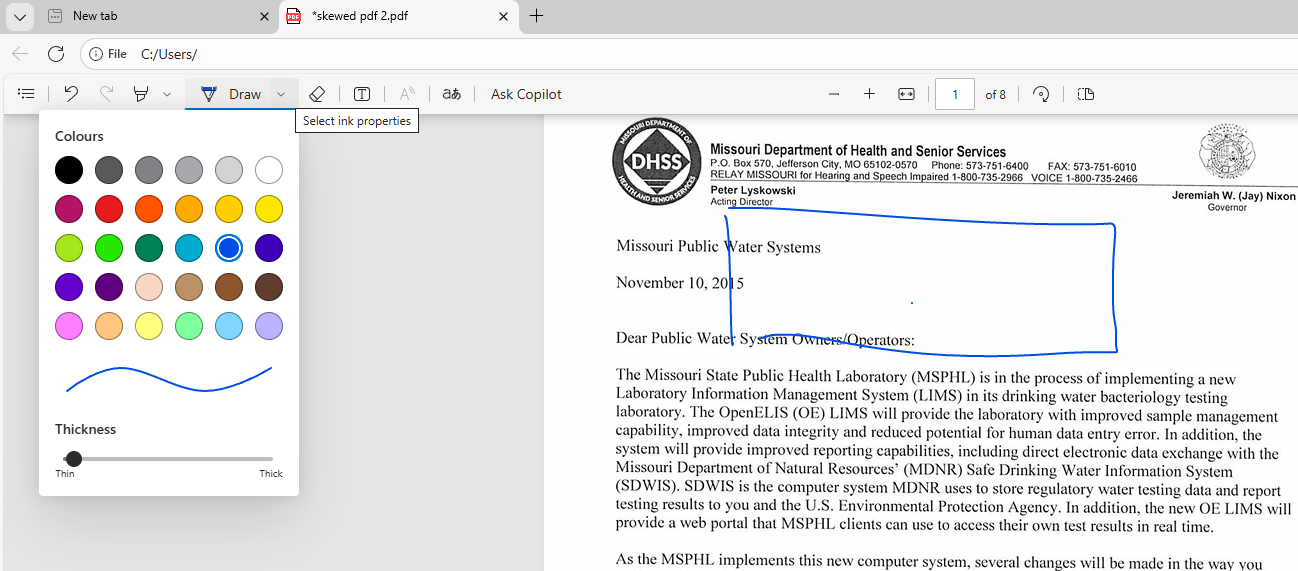
How to Draw on PDF in Edge on Windows
Edge offers limited customization and can feel sluggish with large PDFs or frequent drawing. It is not designed for detailed or repeated annotation workflows.
If you’d like to explore more tools and methods on Windows beyond Microsoft Edge, refer to our full guide on how to draw on PDF on Windows for a complete comparison.
Draw on PDF in Adobe Acrobat Reader
If you are already familiar with Adobe’s ecosystem and want to know how to use the drawing tool in Adobe Reader, you can use the built-in comment features.
Adobe Acrobat Reader supports freehand drawing and standard shapes for light annotation.
Steps
1. Open the PDF in the free Adobe Acrobat Reader.
2. Go to Tools and select Comment.
3. Choose the Use drawing tool for freehand drawing or the Shapes tool for adding standard shapes.
4. Adjust color or opacity, and draw on the PDF.
5. Save the file.
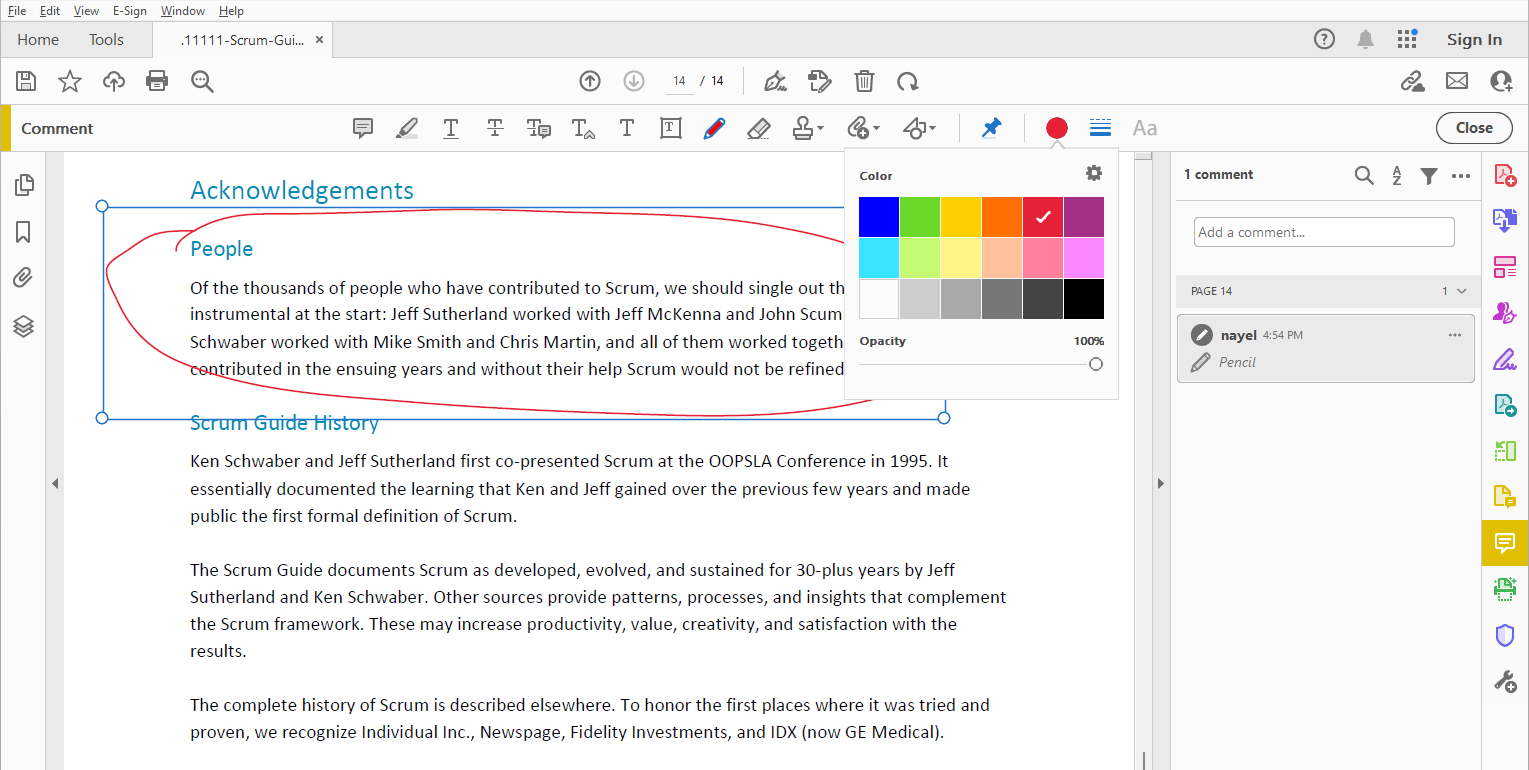
How to Draw on PDF in Adobe Acrobat Reader
Many users encounter paywalls when attempting further edits after drawing. The interface can also be difficult to navigate, making simple drawing tools harder to find than expected. For a free and straightforward alternative, PDFgear allows easy drawing and editing without limitations.
Which Method Should You Choose?
| Tools | Erase Support | Summary |
| PDFgear Online Editor | Undo/Delete object | Quick online drawing, cross-device sharing, printing. Free, no installation, reliable strokes. |
| PDFgear Offline App | Partial / Entire Erase | Frequent edits, large PDFs, precise annotations. Free, supports undo/erase, handles large files. |
| Preview | No | Quick Mac drawing, clean shapes. Free, built-in; cannot erase, drawings may display differently on non-Apple viewers. |
| Microsoft Edge | Yes | Simple or temporary Windows drawing. Free, built-in; limited customization, slower on large PDFs. |
| Adobe Acrobat Reader | Undo/Delete object | Users familiar with Acrobat ecosystem, light annotation. Free; paywall for further edits. |
Key Takeaway
Overall, built-in and free PDF viewers often provide only basic drawing features, with limited erase options and restricted editing flexibility. For consistent strokes, cross-device reliability, and a free, easy-to-use interface without subscriptions, PDFgear (online or offline app) is the recommended solution for most users.
FAQs
How to draw on a PDF with a stylus vs a mouse?
A stylus is better for handwriting, signatures, and precise strokes because it follows natural pen movement. A mouse works for simple lines or shapes but feels less accurate. Tools like PDFgear handle both input types consistently, reducing lag and unwanted stroke smoothing.
Can I draw on a PDF with a stylus or Apple Pencil?
Yes. On iPad, open the PDF in a Pencil-supported app and use the markup tool to write directly on the page. On Windows devices like Surface, open the PDF in a desktop editor and draw with a stylus. PDFgear supports both workflows.
Why can’t I draw on a PDF file?
The PDF may be password-protected or have editing restrictions. PDFgear’s free PDF editor allows you to unlock and draw on PDFs with a user password.
How do I erase drawings from a PDF?
Many tools only support undo, not true erasing. PDFgear’s desktop app lets you erase individual strokes, making it much easier to revise detailed drawings.
Can I draw on a PDF using Google Drive?
Yes, on Android. Open the PDF in Google Drive, tap the pencil icon, and use Annotate to draw. On desktop browsers or iOS, drawing support is limited. For more precise tools and better sharing results, PDFgear offers a stronger alternative.
Why do drawings look different in other PDF apps?
Some tools don’t write annotations back to standard PDF structures. PDFgear saves drawings in a more compatible format, helping them display consistently across viewers.
Should I flatten a PDF after drawing on it?
Flattening prevents further edits and ensures stable printing or sharing. With PDFgear, you can keep an editable copy first, then export a flattened version when needed. You can also use our free online PDF flattener.
How to draw on a PDF in Chrome?
Open your PDF in Chrome and upload it to the PDFgear online editor to draw directly in your browser. For a detailed walkthrough, see our guide on how to draw on PDF in Chrome. Some third-party Chrome extensions also allow drawing, but PDFgear ensures reliable strokes across devices without requiring an extension.
Choosing the Best Way to Draw on PDF
If you only need quick, one-time markups, built-in tools like Preview or Edge may be enough. For stable sharing, clean shapes, and cross-device consistency, PDFgear’s online editor works well. If you expect frequent revisions or need precise erasing, a desktop PDF editor is the most reliable choice.
