How to Create an Electronic Signature and Sign a PDF for Free

Summary :
Learn how to electronically sign a PDF for free using PDFgear, Adobe Reader, Mac Preview, or eSignGear. Simple online, offline, and signature request methods.
Table of Contents
You don’t need to print a document, sign it by hand, and scan it back just to add a signature. Today, you can electronically sign a PDF in seconds using a computer, phone, or web browser.
Most PDF signing situations fall into three common cases:
- Quick online signing with no login required
- Secure offline signing when you prefer to keep files on your device
- Sending a document to others and collecting their signatures
This guide explains each method step by step and shows how to electronically sign a PDF using free tools for both online and offline workflows.
Electronically Sign PDF Online without Login
Signing a PDF in the browser is often the fastest option. It requires no installation and works well for simple tasks like school forms or quick agreements. This method also lets you sign a PDF online for free without creating an account.
However, built-in browser tools like Microsoft Edge or Chrome only let you draw on a PDF. They don’t support true electronic signatures with a structured signing workflow. An online tool such as the PDFgear Online Signing Tool solves this limitation.

How to Sign a PDF in Browser without Login Free
1. Go to the PDFgear Online Signing Tool.
2. Upload your PDF file.
3. Click Add Signature.
4. Choose one of the following options to add a signature to the PDF for free:
- Type your name.
- Draw your signature.
- Upload a signature image.
5. Place the signature where needed and adjust its size.
6. Download the signed PDF.
Why Choose This Method
- No registration required.
- No software installation.
- Works on Windows, macOS, iOS, and Android, plus Chromebooks.
- Ideal for quick and occasional signing.
Fill Out a PDF Form While Signing:
If the PDF includes form fields, you can fill them out and add your signature in the same workflow using the PDFgear Online Editor.
How to Sign a PDF and Request Signatures from Others
In many cases, signing a PDF is only part of the process. Contracts, client agreements, and approval forms often require signatures from multiple people.
To support this kind of collaboration, PDFgear offers eSignGear. It is a companion service from the team behind PDFgear. eSignGear lets you send documents, add signature fields, invite others to sign, and track the signing process online.

How to Email a PDF for an Electronic Signature
1. Upload your document to eSignGear.
2. Add the signees’ email addresses and set an expiration date or reminder if needed.
3. Assign signature fields to each person.
4. Click Finish and Send, then track the signing status in your dashboard.
5. Download the completed document once all parties have signed.
How to Add Electronic Signature to PDF Free Offline
Online signing is ideal for quick tasks. However, when you need more control over how your signature is created and applied, using desktop software can offer greater flexibility.
For offline signing, PDFgear provides a free way to create and add an electronic signature to a PDF while giving you access to features like batch signing and background removal for cleaner signature images.
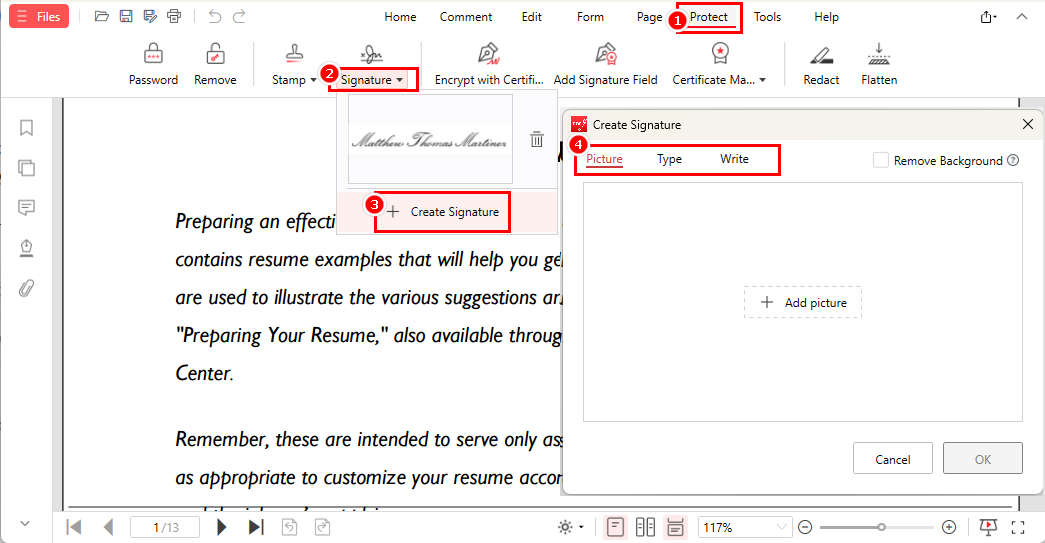
How to Add Signature in PDF Free
1. Download PDFgear, then open your PDF file.
2. Click Protect > Signature.
3. Select Create Signature and choose one of the following options. Once created, your signature can be reused for future documents:
- Type your name
- Draw your signature
- Upload a signature image (background removal supported)
4. Place the signature where needed. PDFgear also supports batch signing, making it suitable for repeated workflows.
5. Save the file.
Important Note:
If you want maximum permanence, export the signed file by printing it to a new PDF. This merges the signature into the page content and makes it much harder to edit.
How to Create an Electronic Signature in Adobe
Adobe Acrobat Reader is one of the most widely recognized PDF tools, and many users prefer it for signing documents. It includes a built-in Fill & Sign feature that allows you to create and apply an electronic signature.
One primary feature is that signatures added through Adobe’s Fill & Sign feature are not easily removable through standard editing tools.
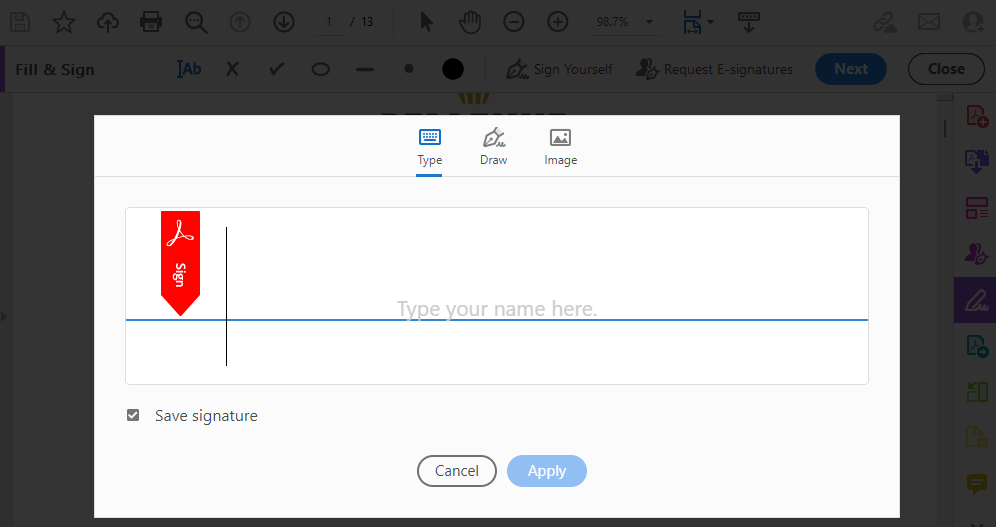
How to Electronically Sign a PDF Using Adobe Reader Fill and Sign
1. Open your PDF in Adobe Acrobat Reader.
2. Click Fill & Sign in the right-hand panel.
3. Click Sign > Add Signature.
4. Choose one of the following methods:
- Type your name
- Draw your signature
- Add an image of your signature
5. Click Apply.
6. Place the signature where needed and save the file.
Limitations:
- Only one signature template can be stored at a time.
- No batch signing.
- No background removal for uploaded signature images.
How to Add Signature to PDF on Mac Preview
Mac users can sign PDFs using Preview, the built-in PDF viewer in macOS. It allows you to create and insert a signature directly into a document without installing additional software.
Preview also supports Apple’s Continuity feature, which lets you create a signature on your iPhone or iPad and insert it into the PDF instantly.
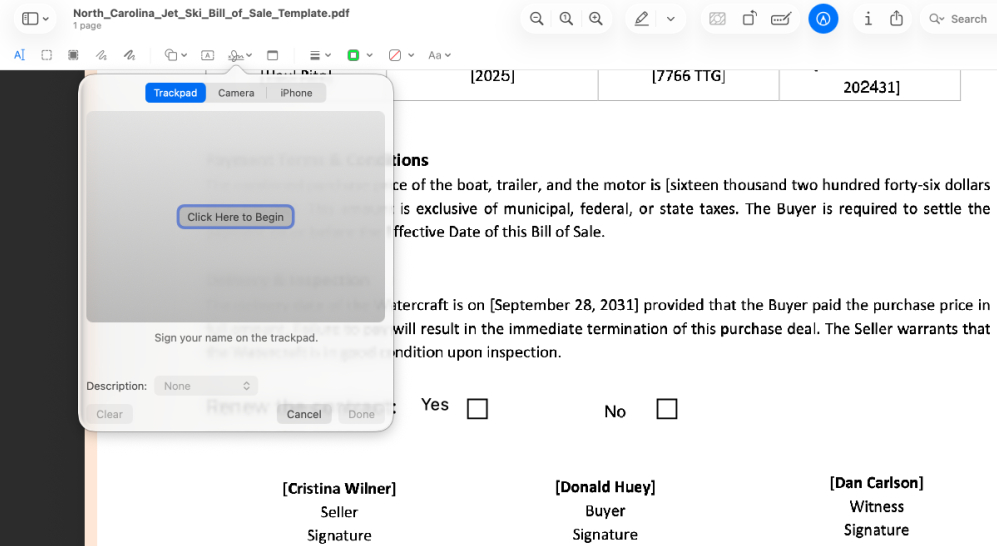
How to Sign PDF Electronically on Mac
1. Open the PDF file in Preview.
2. Click the Markup icon in the toolbar, then click the Signature icon.
3. Create a signature using one of the following methods:
- Trackpad.
- Camera (scan a handwritten signature).
- iPhone or iPad via Continuity.
4. Insert the signature into the document.
5. Save the file.
Limitations:
- No batch signing
- Limited editing controls
- Only available on macOS
Comparison of Free Tools to Sign PDF
Different tools are suited for different signing needs. Some focus on quick online signing, while others provide more control for offline workflows or document collaboration. The table below summarizes the main differences to help you choose the right option.
| Tool | PDFgear Online Signer | eSignGear | PDFgear Software | Adobe Reader | Mac Preview |
| Login Required | No | Yes | No | Yes | No |
| Works Online/Offline | Online | Online | Offline | Offline | Offline |
| Batch Signing | No | No | Yes | No | No |
| Background Removal | No | No | Yes | No | No |
| Best For | Quick signing | Request signatures | Secure & repeated signing | Recognized desktop tool | Mac users |
FAQs
How do I email a PDF for an electronic signature?
Use eSignGear to sign and send the document. Upload the PDF, add recipients, assign signature fields, and send the request. Each signer receives an email invitation and can sign the document online before the expiration date you set. See Method 2 for detailed steps.
Can I sign a PDF without printing it?
Yes. Electronic signature tools like PDFgear let you sign a PDF digitally by typing your name, drawing a signature, or uploading an image of your handwritten signature. This allows you to complete the process without printing or scanning the document.
How to electronically sign a PDF without Adobe?
Use a PDF tool that supports electronic signatures. For example, PDFgear is a free alternative to Adobe. Open the PDF, go to Protect > Signature > Create Signature, and insert your signature. See Method 1 above for detailed steps.
Can I sign a PDF on Chromebook?
Yes. Since Chromebooks mainly run browser-based apps, the easiest option is an online tool. Upload the document to the PDFgear Online Signing Tool, add your signature, and download the signed PDF.
How to sign a PDF document on iPhone?
You can sign a PDF on iPhone using built-in markup tools or online signing tools. Typically, you can open the PDF, choose the signature option, draw your signature with your finger, and insert it into the document.
How to electronically sign a PDF on Android?
PDFgear is available on Android, iOS, Windows, and macOS. Download PDFgear and open the document, create a signature by drawing, typing, or uploading an image, then place it where needed and save the file.
Are there free tools to sign a PDF?
Yes. Many tools allow you to sign PDFs for free, including online signing services, desktop PDF editors, and built-in system tools like Mac Preview. The best option depends on whether you prefer quick online signing or more control with offline software. You can refer to the comparison table above for a quick overview.
Conclusion
Electronically signing a PDF is now easier than ever, whether you need a quick signature, a secure offline workflow, or a way to collect signatures from others.
For fast, one-time signing, PDFgear Online Signing Tool works directly in your browser with no login required. If you need more control or want to manage signatures locally, PDFgear Software provides a free offline solution. When a document requires signatures from multiple people, eSignGear helps you send, track, and manage the signing process.
